EmailOctopus Automation Guide: Triggers, Conditions, and Examples
Contents
EmailOctopus automation is now much more capable than a basic welcome autoresponder. You can trigger sequences when contacts are added, tagged, updated, reach a date, or enter through another automation or the API. You can then branch with conditions, wait, send emails, update fields, change tags, unsubscribe contacts, or move people into another automation.
That makes EmailOctopus a good fit for straightforward lifecycle automation. It is still less suitable than a full CRM automation suite when you need complex sales pipelines, deep ecommerce events, or large multi-channel journeys.
EmailOctopus automation at a glance
| Capability | What EmailOctopus supports |
|---|---|
| Triggers | Contact added, field updated, tag added/removed, another automation, API, anniversary date, specific date |
| Steps | Send email, wait, condition, action |
| Branching | Yes, using conditions with all / any / none matching |
| Multiple triggers | Up to three triggers in one automation on Pro |
| Templates | Prebuilt automation templates plus start-from-scratch |
| Behavior-based logic | Can branch on automated-email opens and clicks |
What can trigger an EmailOctopus automation?
The trigger decides who enters the automation. EmailOctopus currently supports several useful entry points:
- Contact added: ideal for welcome and onboarding sequences.
- Contact field updated: useful when a profile value changes.
- Tag added or removed: useful for interest, purchase, status, or lifecycle tags.
- Another automation: lets one sequence hand a contact into another.
- API: lets an external system trigger the automation programmatically.
- Anniversary or specific date: useful for birthdays, renewals, appointments, anniversaries, or time-sensitive follow-up.
Multiple triggers are a Pro feature
On Pro, a single automation can have up to three triggers. That is useful when new and existing subscribers should enter the same sequence through different paths. For example, a new subscriber with a “short story interest” tag and an existing subscriber who receives that tag later can both enter the same sequence.
What can happen inside an automation?
Once a contact enters, you can build the sequence with four main step types.
- Send email for the actual automated message.
- Wait for a period or until a particular day/time.
- Condition to branch people based on profile data, tags, activity, or email behavior.
- Action to update a field, add/remove a tag, unsubscribe someone, or trigger another automation.
Useful EmailOctopus automation examples
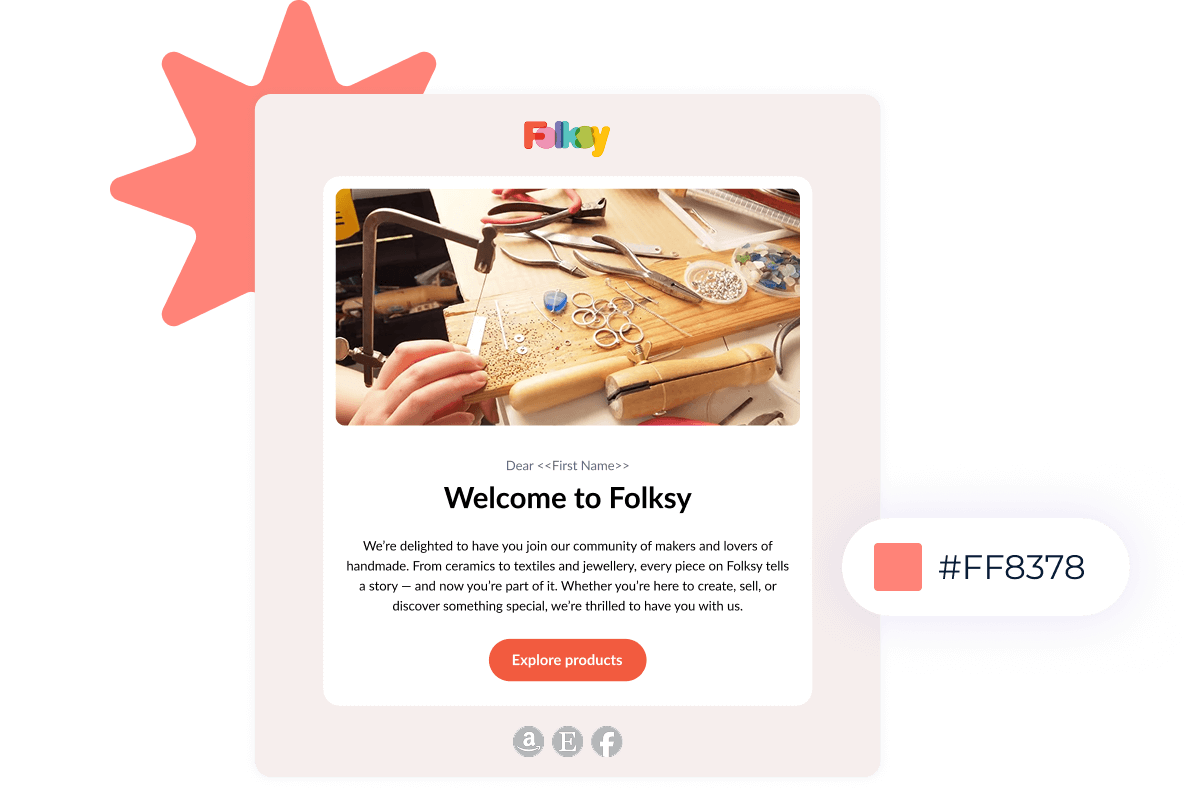
Welcome sequence
Trigger when a contact joins your list, send the welcome email immediately, wait a day or two, then continue with your best content or offer.
Interest-based nurture
Tag contacts based on the form or lead magnet they used, then trigger a sequence specific to that interest. This works particularly well when one list serves several products, topics, or customer groups.
Re-engagement
EmailOctopus provides automation templates that can be used for re-engagement. A practical sequence is to identify inactive subscribers, send a re-engagement email, wait, then branch based on whether they engaged.
Birthday or anniversary email
Store a date in a date-type custom field and use the anniversary trigger to send on, before, or after the same date every year.
Appointment or deadline reminder
Use the specific-date trigger when the full date, including year, matters. This is useful for one-off appointments, deadlines, expirations, or events.
Restock, upsell, or churn follow-up
EmailOctopus itself suggests scenarios such as restock reminders, upsells, cross-sells, and churn recovery when a connected system adds the right tag or updates the relevant contact data.
Where EmailOctopus automation falls short
Pros
- Clear visual trigger, wait, email, condition and action model
- Useful date and tag-based triggers
- Behavior-based branches using automated email opens/clicks
- Automation templates reduce setup time
Cons
- Not a full CRM or enterprise journey orchestration platform
- Multiple triggers require Pro
- Complex ecommerce automation often depends on integrations and tagging
- Teams needing deep omnichannel automation may outgrow it
How to decide if EmailOctopus automation is enough
EmailOctopus is a strong fit when your automation logic can be described in a few clear sentences: “when this happens, wait, send this, branch on this behavior, then tag or follow up.” It becomes less compelling when the workflow depends on many sales stages, complex ecommerce events, SMS, WhatsApp, CRM scoring, or large multi-channel journeys.
EmailOctopus automation FAQs
Does EmailOctopus have advanced automations?
Yes. EmailOctopus supports multiple trigger types, waits, emails, conditions, actions, and branching logic. Multiple triggers in one automation are a Pro feature.
Can EmailOctopus send birthday emails?
Yes. Use a date custom field with the anniversary trigger to send before, on, or after the recurring date.
Can EmailOctopus trigger automations through the API?
Yes. The current automation trigger list includes manual triggering through the API.
Can I branch based on opens or clicks?
Yes. Conditions can check automated-email activity within the same automation path.