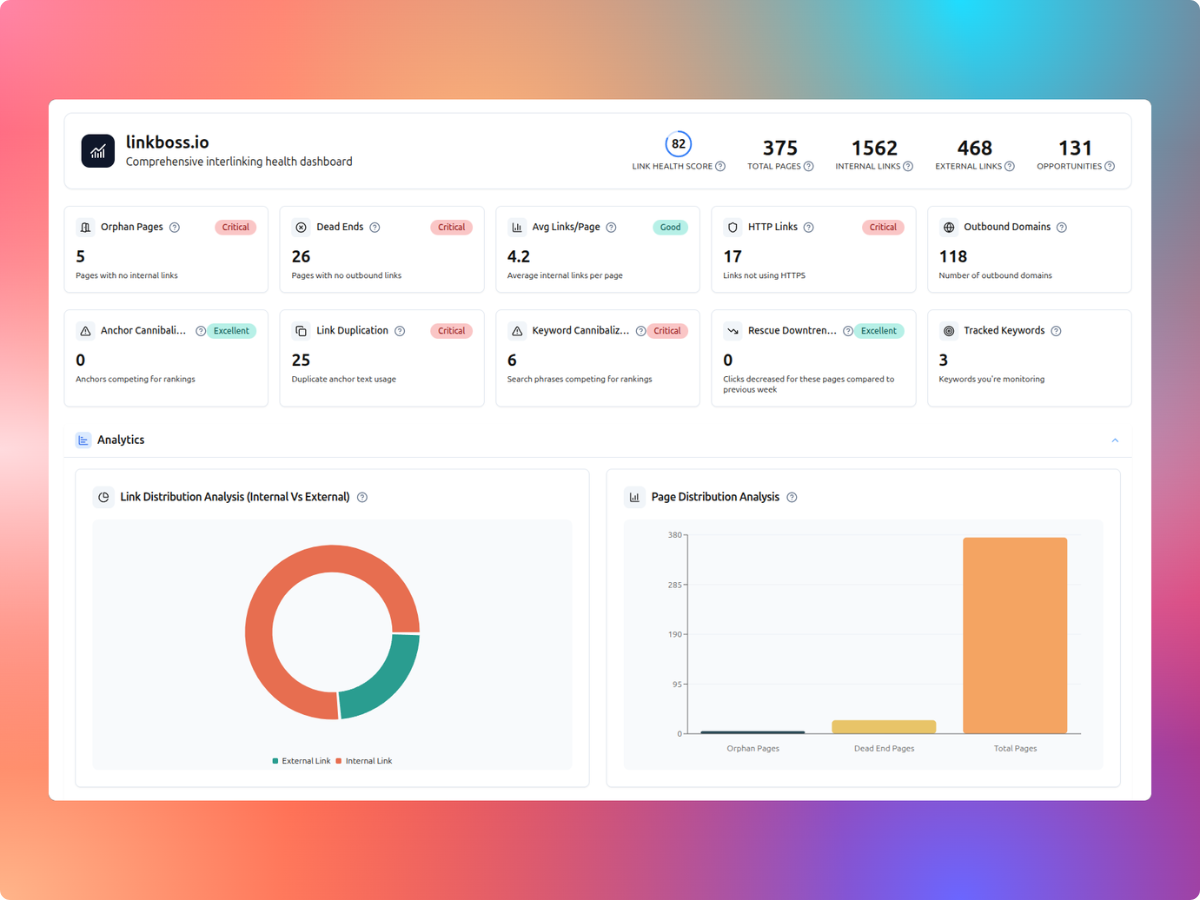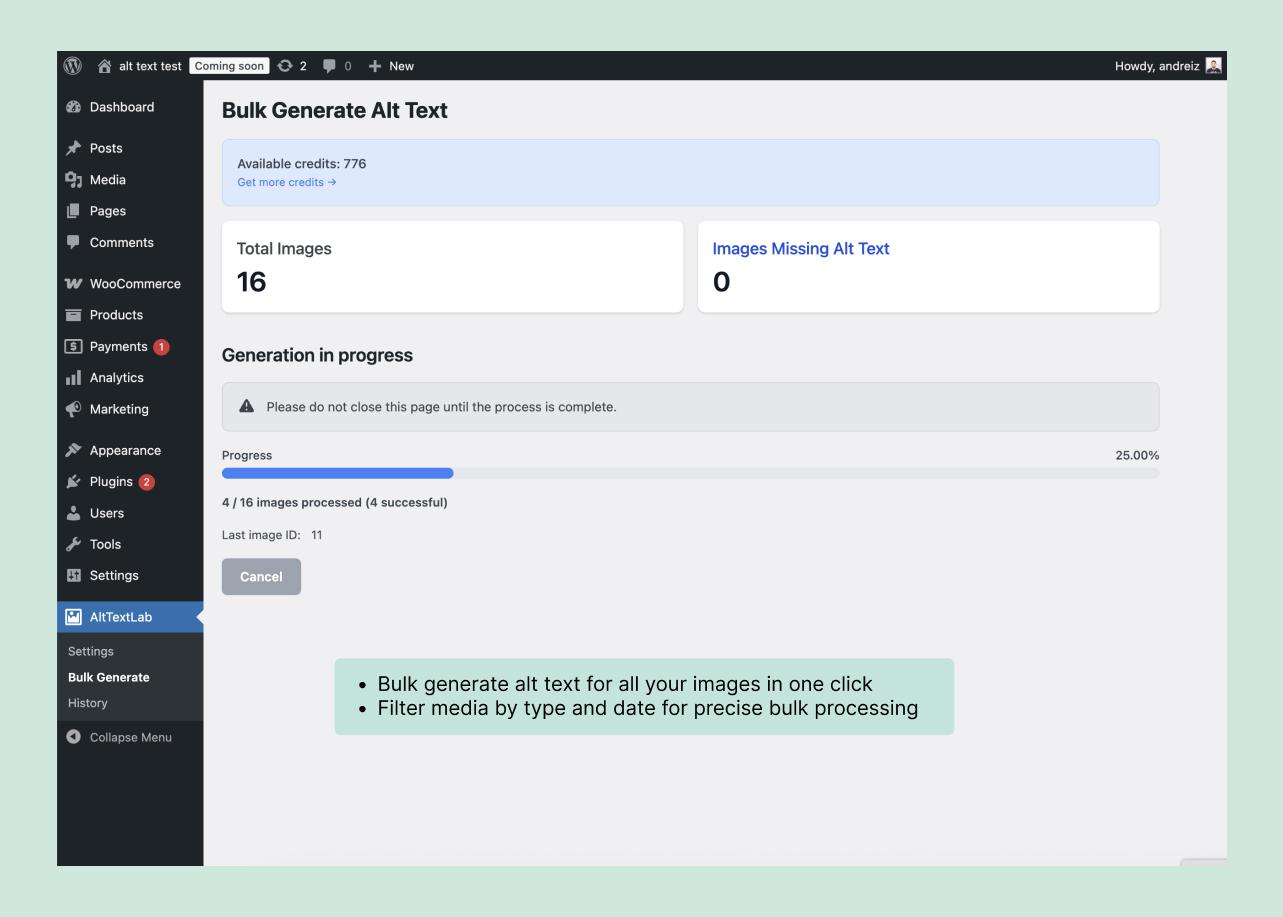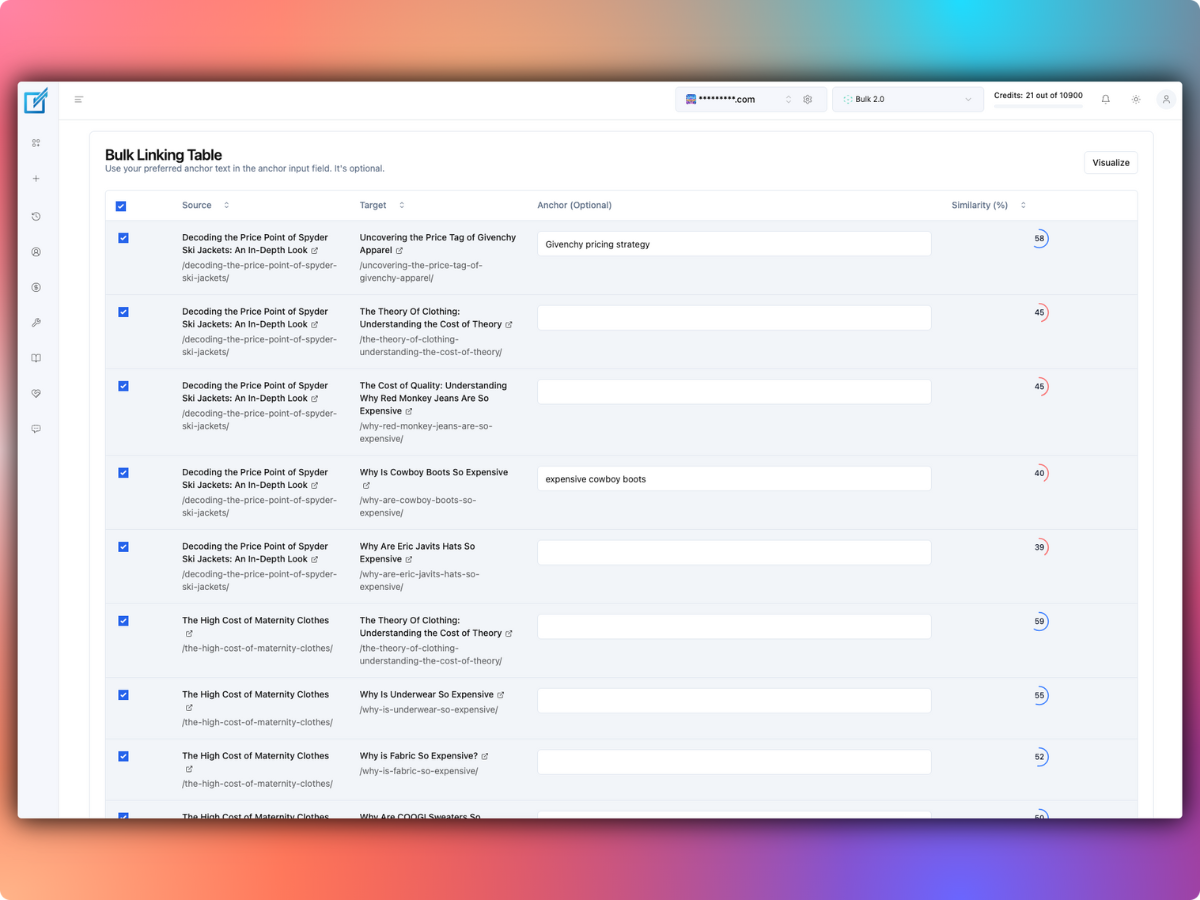
LinkBoss connects to WordPress through a plugin and runs its semantic internal-link analysis in a separate dashboard. Install the plugin, connect a LinkBoss account, sync your published content, run the free audit, and review link suggestions before making your first changes. LinkBoss supports bulk linking, orphan-page fixes, silo planning, and anchor-text analysis.
The safest way to begin is with a small set of pages, not your entire archive. LinkBoss can change published content, including rewriting or creating sentences for an internal link. A backup and a review process matter as much as the initial setup.
What you need before connecting LinkBoss to WordPress
- WordPress administrator access to install and activate a plugin.
- A LinkBoss account. The company advertises a free starting tier for audits and introductory insertion credits.
- A list of important pages such as category hubs, cornerstone guides, and pages with weak internal navigation.
- A current backup of the WordPress database and post content before any mass-editing operation.
- Time to review suggested links on a small initial batch.
The official WordPress.org page lists compatibility with WordPress 5.0 and newer in its setup documentation. Your actual WordPress and PHP compatibility should also be checked in the current plugin listing before installing.
How to install and connect LinkBoss
Step 1: Install the plugin
- In WordPress, open Plugins → Add New.
- Search for LinkBoss, confirm the plugin is the one published by ZVENTURES, then select Install Now and Activate.
- Open LinkBoss from the WordPress dashboard menu.
Step 2: Connect your account
The plugin’s current WordPress.org installation instructions describe a Create Free Account & Connect button that can connect the site without manually pasting an API key. LinkBoss’s separate April 2026 knowledge-base article describes an older manual procedure: create a site in the web dashboard, copy an API key, and paste it into the plugin.
Follow the screen shown by your installed plugin. If it offers direct connection, use that. If it asks for a key, follow the official manual setup guide. Avoid searching for an API key that the newer connection workflow doesn’t require.
Step 3: Sync WordPress content
- Select Sync Now in the plugin.
- Wait until the initial sync finishes.
- Open the LinkBoss dashboard and review Tools → Site Report.
- Compare the number of synced published posts and pages against what WordPress shows.
The official setup guide says the plugin reports synced and remaining content counts. A mismatch can mean that drafts weren’t included, custom post types need configuring, or the site has not finished syncing. Don’t begin a bulk linking operation until the scope is clear.
Run a free internal-link audit before adding links
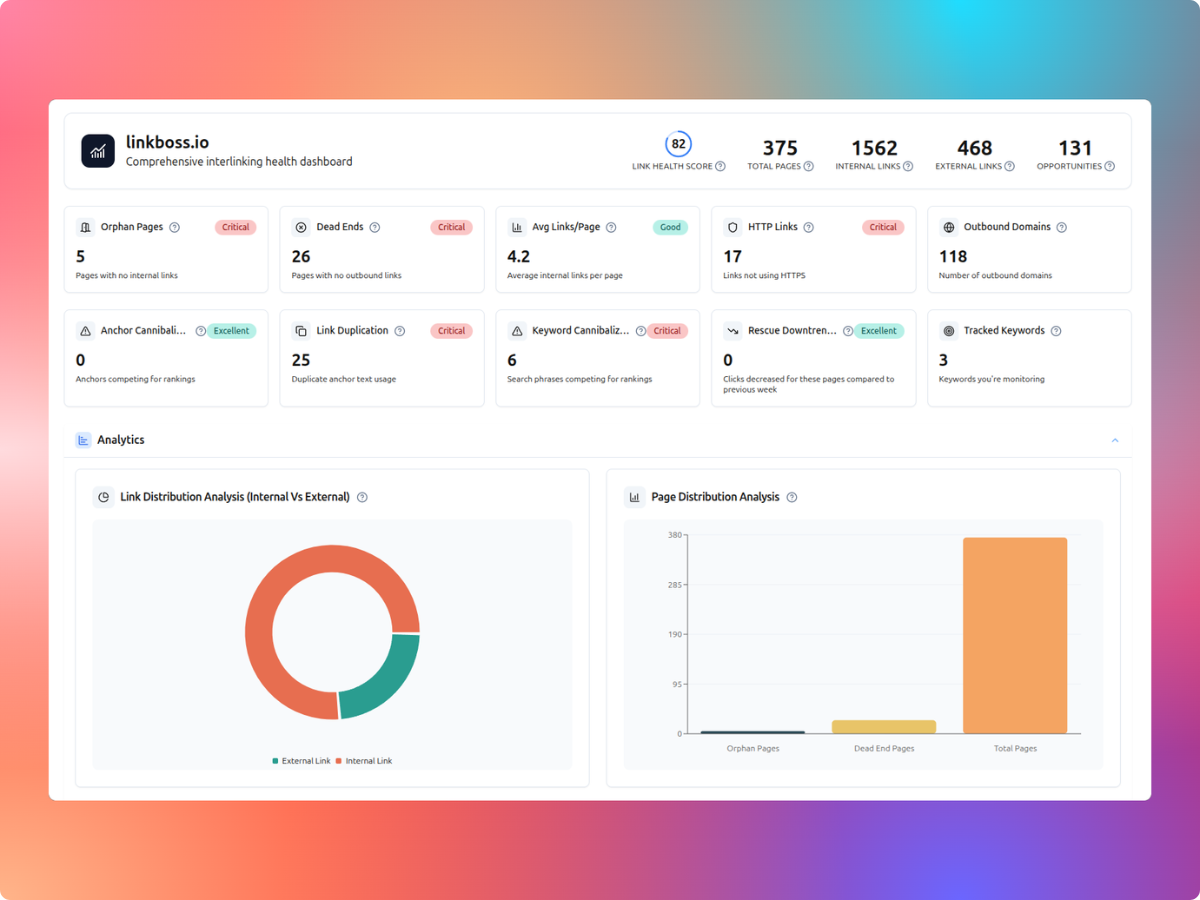
LinkBoss says several analysis features are available without paid insertion credits. Start with the site-health dashboard and work through the issues that affect important content.
- Orphan pages: pages without incoming internal links from the site’s other content. Prioritize useful pages you actually want readers and search engines to discover.
- Dead ends: pages without outbound internal links to related site content. Add links only where the destination genuinely helps the reader.
- Duplicate links: repetitive links that add little navigational value.
- Anchor cannibalization: the same anchor phrase repeatedly pointing to different target pages.
- Site structure: areas of the content library that are disconnected from major hub pages.
An audit alert is a prompt to examine a page, not proof that every flagged page needs a new link. A contact page, campaign landing page, or intentionally isolated page may have a legitimate reason for sparse internal linking.
Choose a safe first linking batch
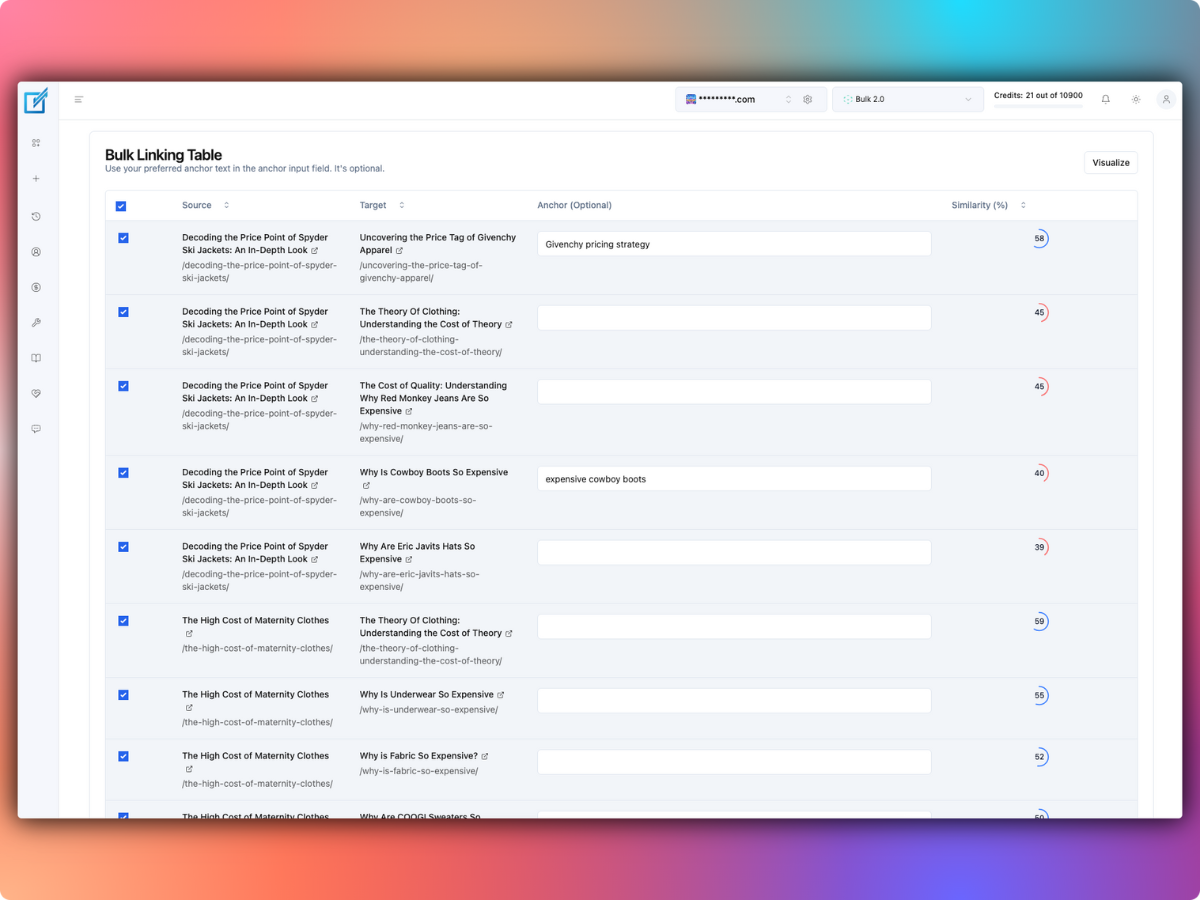
For the first run, select 10 to 20 content pages that are genuinely related. Include a mix of source pages that have existing relevant sentences and destination pages that deserve clearer internal navigation.
- Choose one topic: for example, WordPress SEO, content audits, or email automation.
- Select target pages: include your most useful cornerstone resources, not just the newest posts.
- Inspect proposed anchors: a suitable anchor tells readers what the destination covers.
- Approve selectively: decline repeated, irrelevant, or misleading suggestions.
- Verify on the published site: open several affected pages and check that the added links point to the intended canonical URLs.
LinkBoss’s Bulk 2.0 pipeline can place a link in an existing sentence, rephrase text, or generate new context when a strong existing match is unavailable. That flexibility creates an editorial trade-off: the more aggressively it edits copy, the more closely you should inspect its output.
Fix orphan pages without linking randomly
An orphan page needs useful inbound links from other pages. LinkBoss’s 1-Click Orphan Fix documentation describes how the tool finds a donor page, proposes an anchor and link, and lets you review the pair before applying changes.
Use the following checks before approving each orphan fix:
- Does the donor page discuss something directly relevant to the orphan’s topic?
- Will clicking the proposed anchor help readers continue their task?
- Does the suggested anchor fit naturally within the sentence?
- Would the donor page become overloaded with repeated internal links?
- Is the destination page worth retaining and updating, or should it instead be consolidated or redirected?
According to the vendor’s documentation, the donor page is the content LinkBoss edits. The destination orphan gains an incoming link. The tool can capture a snapshot of the edited page and use that snapshot to revert an individual change or a batch.
Fix dead ends without making every page a hub
LinkBoss’s Dead End Fix guide says it adds one outbound internal link to each selected dead-end page. It can also prioritize orphan pages as destinations, allowing a reviewed run to address both problems.
Before using the feature, check:
- Whether the source page has a natural place to recommend more reading.
- Whether the target article answers the next likely question.
- Whether a commercial landing page would be harmed by an irrelevant navigation path.
- Whether the new link creates unnecessary repetition with existing menus or related-reading sections.
Do not aim to make every article link to every other article. A smaller collection of relevant links is more useful than an indiscriminate network.
Build content silos with LinkBoss
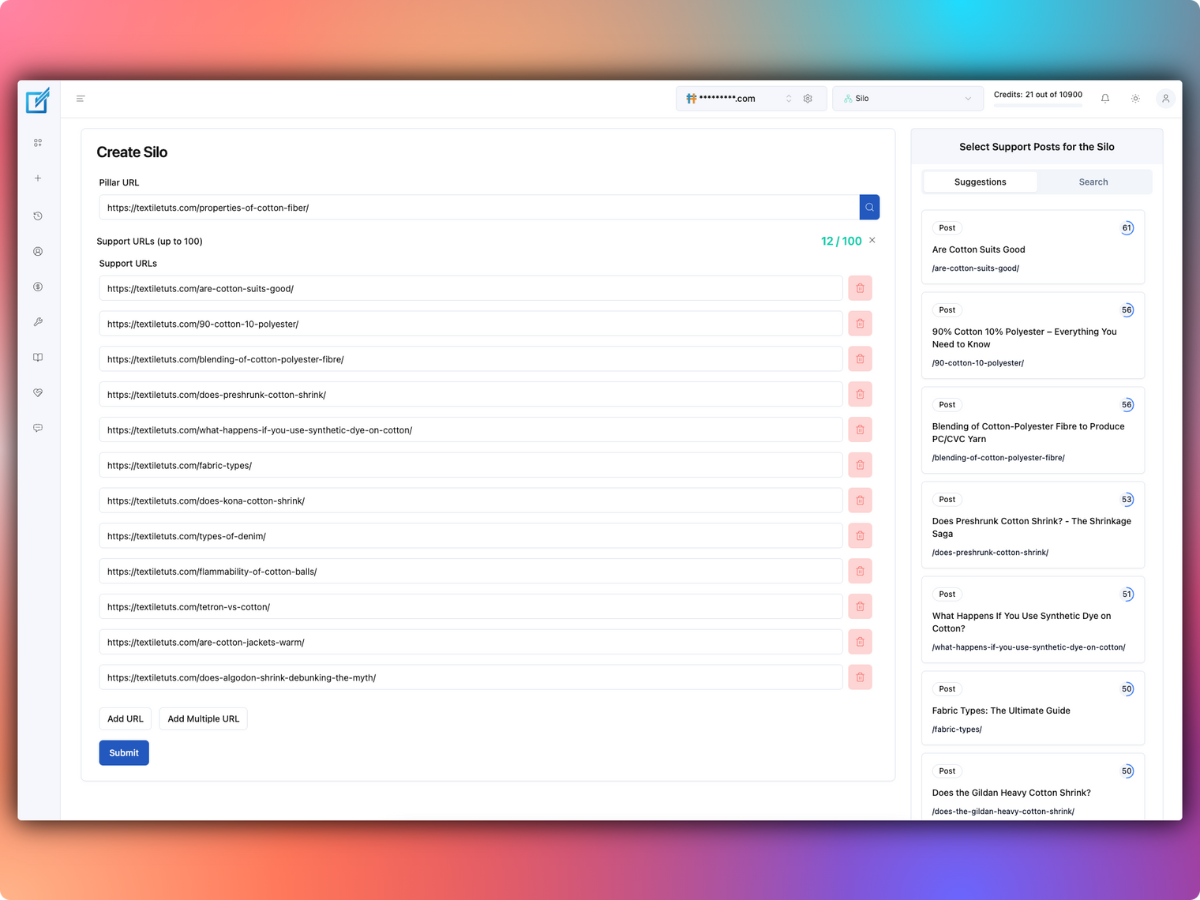
LinkBoss offers Reverse, Priority, Serial and Circle-style silo structures to help connect pillar and supporting pages. The structure is only as good as the relationship between the selected pages.
Example: a WordPress SEO topic cluster
- Pillar: a complete WordPress SEO guide.
- Supporting page: an internal linking tutorial.
- Supporting page: an image alt-text optimization guide.
- Supporting page: a site audit checklist.
- Supporting page: a guide to WordPress redirects and broken links.
Link each supporting article to the pillar where relevant. Link between supporting pages only when the topics overlap meaningfully. The vendor’s WordPress product documentation explains its silo presets and visual network map.
Control anchor text after bulk insertion
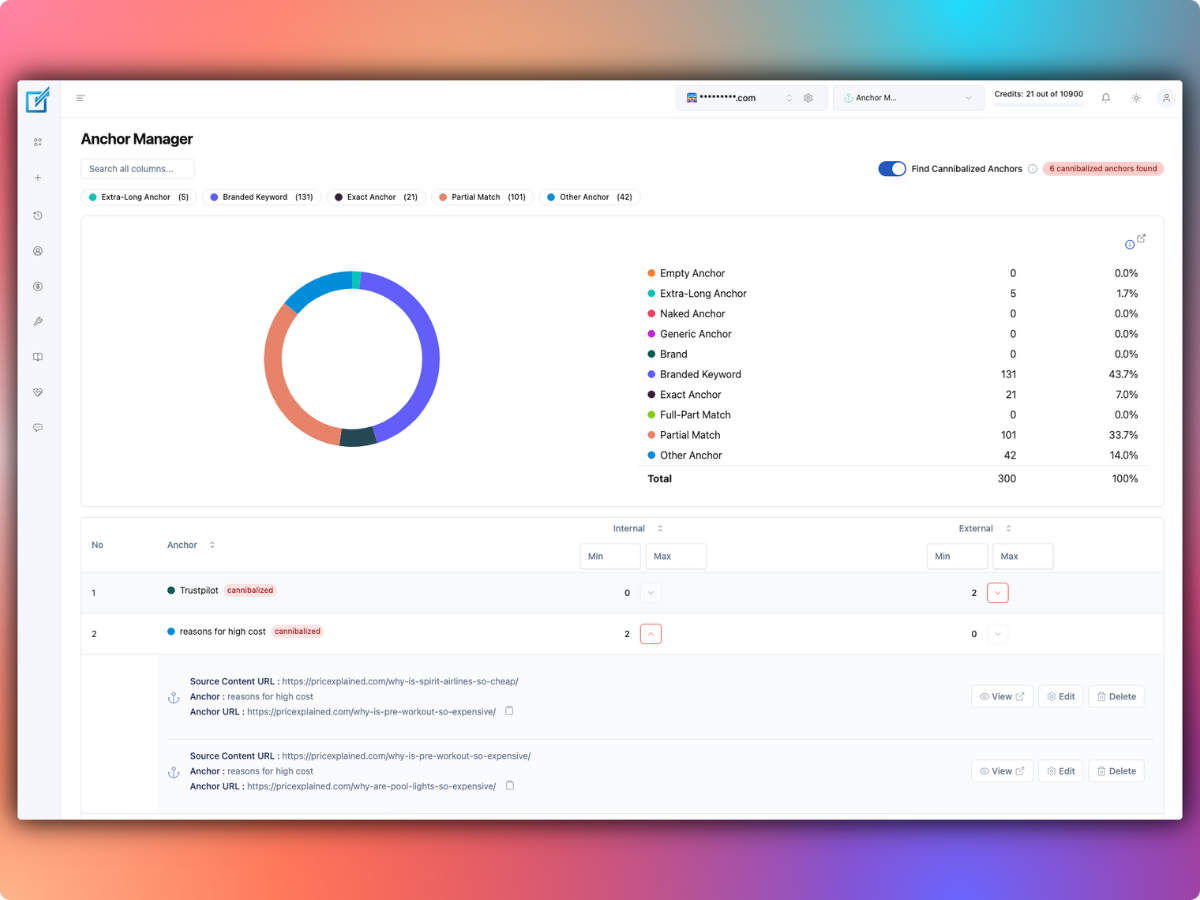
LinkBoss’s Anchor Manager shows several anchor categories, including exact-match, partial-match, branded and generic text. Its interface also highlights cases where similar anchors lead to competing targets.
- Check duplicate intent: if two pages answer substantially the same question, resolve the content overlap instead of adding competing anchors.
- Use descriptive language: the anchor should communicate what readers will find at the destination.
- Vary anchors naturally: avoid making every link to a target use the exact same phrase.
- Review in context: an apparently sensible phrase may be misleading when read inside the full paragraph.
How much does LinkBoss cost after setup?
Audits and planning are advertised as free, while automatic insertion consumes credits. At the published rates, Launch costs $11 per month for one site and 200 monthly credits. Scale costs $37 for three sites and 1,000 monthly credits; annual prices and special unlimited-credit offers are also available.
Remember that LinkBoss charges one credit when linking inside an existing sentence and two when it generates new sentence context. Large linking jobs can exhaust credits faster than a raw link count suggests. See our detailed LinkBoss pricing analysis for the full comparison, annual discounts, and eligibility limits.
Troubleshooting LinkBoss on WordPress
The sync doesn’t finish
- Confirm your LinkBoss account is connected to the correct WordPress site URL and protocol.
- Retry Sync Now after checking the plugin’s connection status.
- Confirm that published posts and any supported custom post types are included.
- Use the vendor’s troubleshooting guide before attempting a reset or full sync.
Published links don’t show up
- Confirm the link operation was approved and marked completed.
- Check that the WordPress plugin remains active and the scheduled synchronization process is enabled.
- Clear relevant page caches, then inspect the actual HTML of the published page.
- If the update is missing, inspect the plugin’s sync state and error messages.
A bulk operation altered copy that shouldn’t have changed
LinkBoss documents snapshots and Compare & Revert controls for individual or entire bulk runs. Use those tools to inspect the before-and-after state. Still keep an independent WordPress backup because a vendor-specific undo mechanism isn’t a substitute for a recovery plan.
Should you use LinkBoss on a live WordPress website?
It’s a reasonable option for publishers who have dozens or hundreds of related posts and need a repeatable linking workflow. The free audit and small-batch review path make it possible to examine opportunities before deploying links widely.
Choose a cautious rollout: connect your site, run a free audit, test a limited batch, verify the actual page copy and targets, and only then expand. Don’t use a large automated insertion run as your first experiment on a revenue-critical site.