LinkBoss’s 1-Click Orphan Fix finds relevant pages that could link to your orphan content, proposes an anchor, and inserts the link into the donor page after you approve it. It includes similarity controls, donor-link limits, previews, snapshots and a bulk rollback option. You should use these controls before changing live posts.
An orphan page is a published page with no incoming contextual internal links from your site’s other content. Finding one does not automatically mean it deserves a link. Some pages should be updated, consolidated, redirected or excluded rather than linked indiscriminately.
What is an orphan page?
Imagine a blog publishes a useful guide about technical SEO but none of its other articles link to it. A reader navigating the blog may never discover the guide through related content, and crawlers following links have fewer paths to reach it. The page can still be accessible through a sitemap or direct URL; “orphan” describes its internal-link relationship, not whether the page exists publicly.
Before fixing a reported orphan, confirm it is indexable, useful, current and the canonical page for its topic. Linking to an obsolete or duplicated page may make the site’s architecture harder to understand.
Find orphan pages in LinkBoss
- Connect your WordPress site using the official LinkBoss plugin.
- Sync published posts and pages so the cloud dashboard reflects your content library.
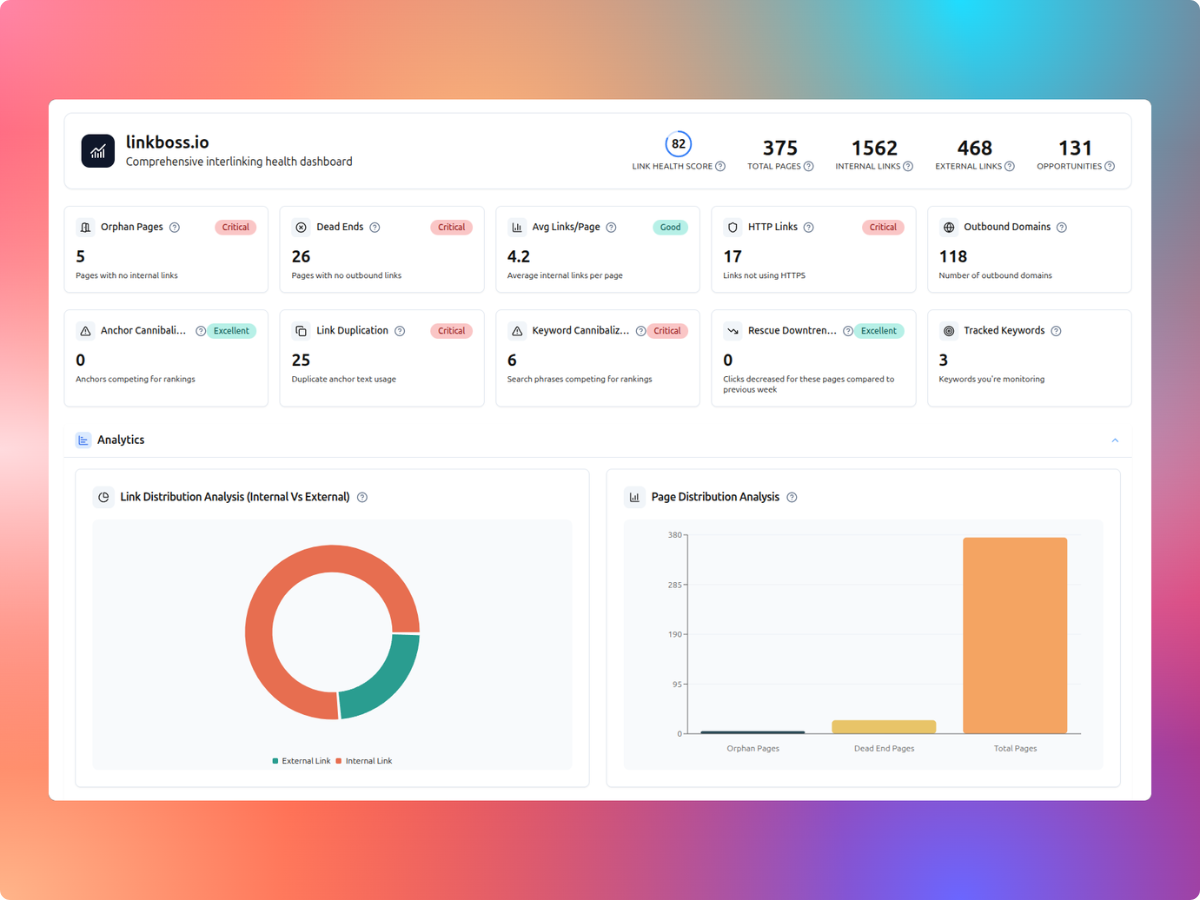
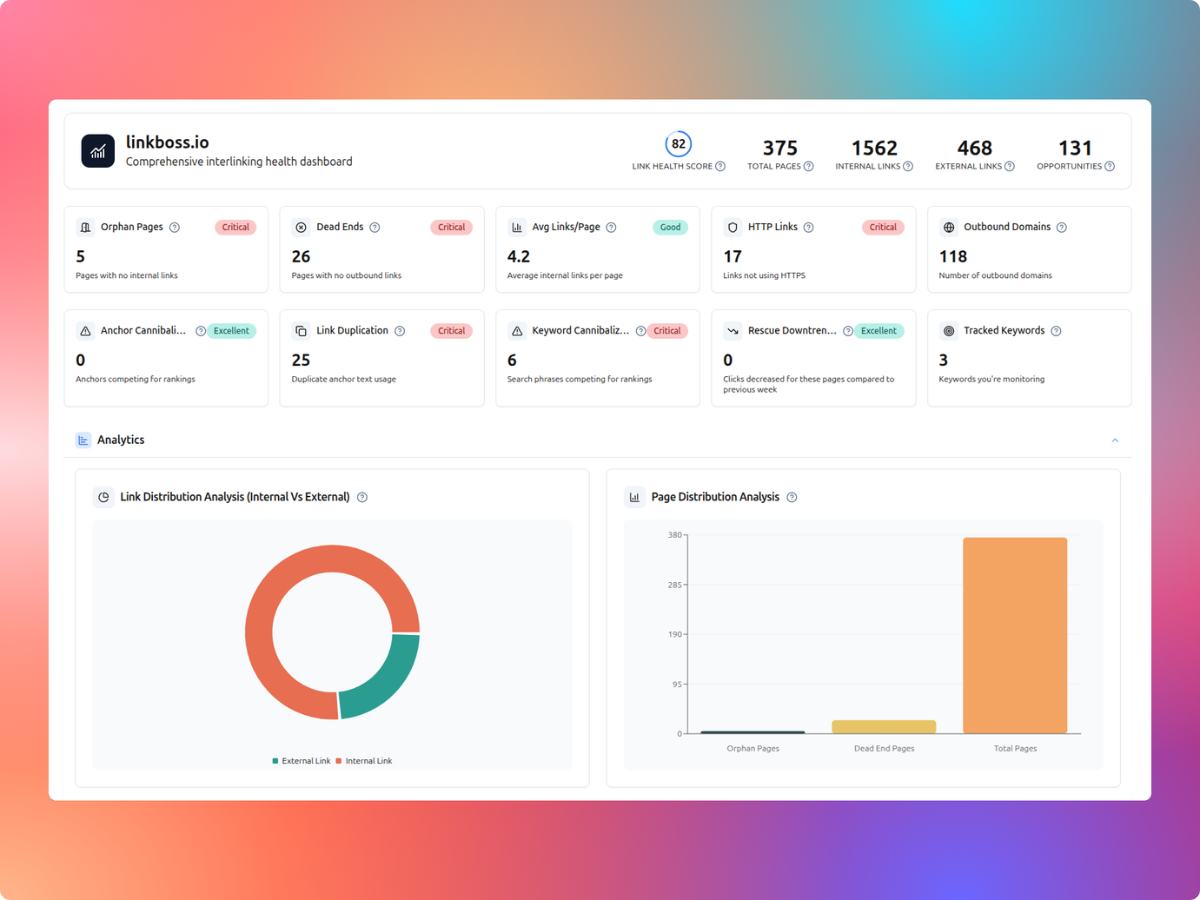
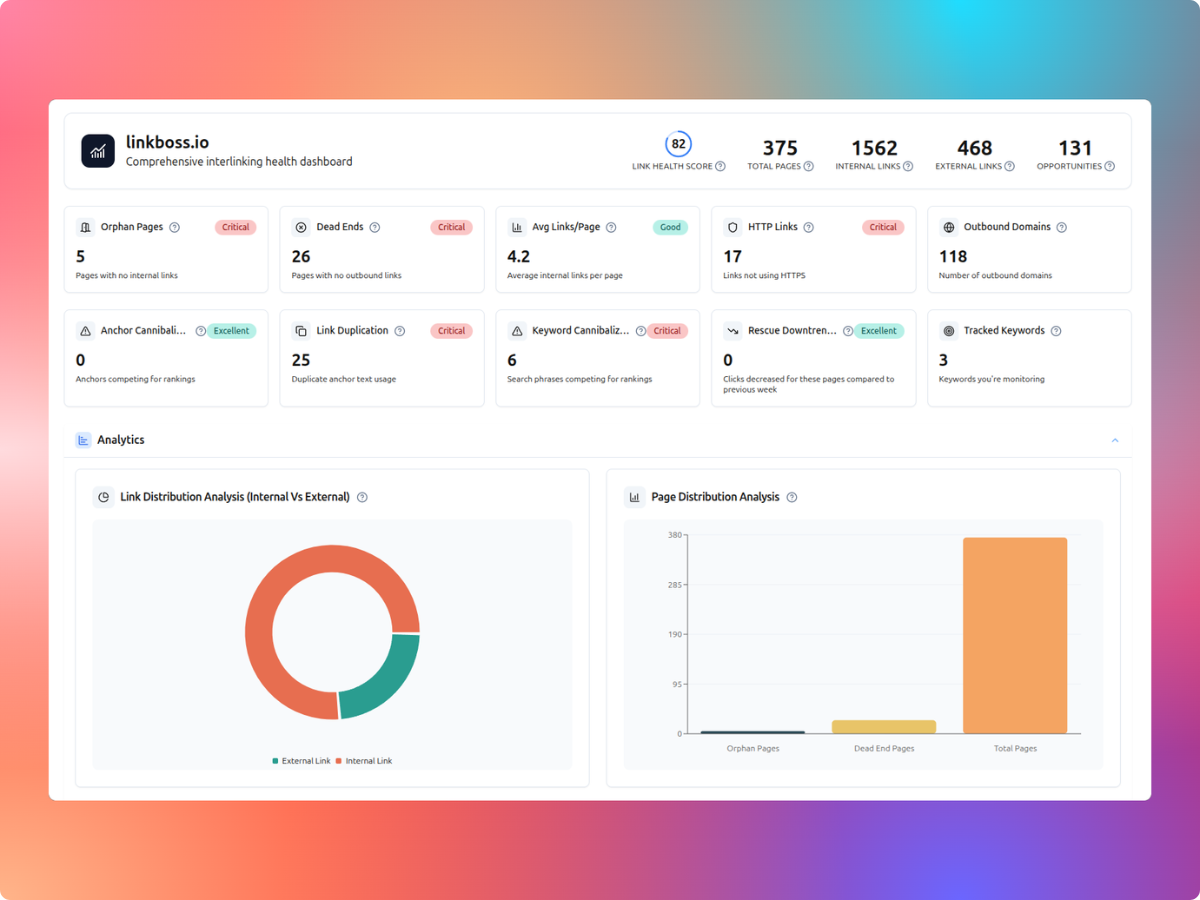
- Open the site dashboard and locate the Orphan Pages count under At a glance.
- Inspect the affected URLs. Separate pages worth promoting from pages that should be removed, redirected or deliberately isolated.
- Scroll to the Opportunities section and locate the Quick Fix Orphans card.
The documented navigation comes from LinkBoss’s October 2026 Orphan Fix guide. Button labels may change with subsequent interface updates.
Step 1: Configure donor matching rules
Click 1-Click Fix from the orphan opportunities card. LinkBoss’s Solve Orphan Pages workflow opens a Rules step. The default minimum semantic similarity threshold is listed at 70%, and the default maximum outbound links per donor is five.
- Minimum semantic similarity: raise the threshold to accept fewer, closer topical matches. A percentage is a model-based matching signal, not a guarantee of relevance.
- Maximum links per donor: limit how many existing and newly inserted outbound links one source page may carry.
- Link insertion settings: choose how the link should be incorporated and whether text generation is permitted.
A conservative first run should favor a small number of strong donors. If a page already contains several relevant links, adding another may offer little reader benefit.
Step 2: Review proposed donor and orphan pairs
Choose Find Donors. LinkBoss analyzes the orphan pages and pairs them with pages it considers topically related. LinkBoss says no links are created until you approve the matches.
Its Review Pairs stage displays the donor, the orphan destination, match score, change in the donor’s link count and the credit cost. You can untick individual proposals and keep only the matches you approve.
| Review item | What to ask before approving |
|---|---|
| Donor page | Is this page genuinely about a related problem or next step? |
| Destination | Is the orphan the current, canonical and useful URL? |
| Anchor text | Would a reader understand the destination from the words? |
| Link count | Will the extra link overwhelm an already busy page? |
| Cost | Do the credits and possible copy changes justify the edit? |
Don’t approve links purely because their match score exceeds a chosen percentage. Review the pages themselves, especially when broad keywords make distinct topics look similar.
Step 3: Approve creation and wait for synchronization
Once you’re satisfied, select Create Links, then confirm with Submit. The documented LinkBoss flow saves a snapshot of each donor page before changing it. The donor is the source page that receives the inserted link; the orphan is the destination that gains an incoming link.
After processing, LinkBoss opens the results in Manage Bulk. Use Refresh to update statuses. Once rows show completed, open several live donor pages and confirm that their new links work and read naturally.
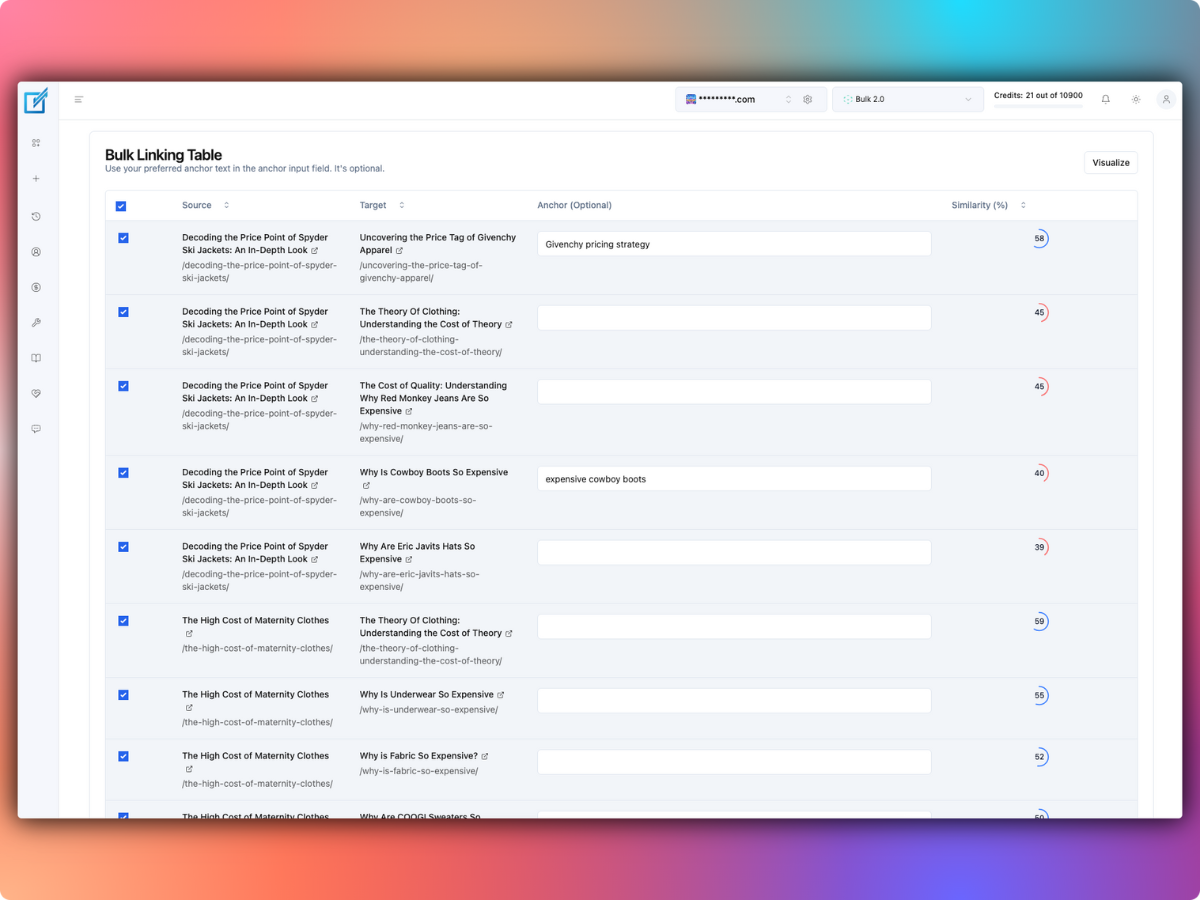
How LinkBoss changes the donor page
The tool can insert a link into an existing suitable phrase or modify a sentence to make an anchor fit. This distinction matters for editorial review and billing. Under LinkBoss’s published credit rules, existing-sentence placement uses one credit while generated sentence context uses two.
Suppose you approve 40 donor links, 30 using existing text and ten requiring new context. The estimated credit use is 30 × 1 + 10 × 2 = 50 credits. That’s an example using published charges, not a measurement of the tool’s actual success or rewrite frequency.
See our LinkBoss pricing analysis to check monthly, yearly and special unlimited-credit offers before a larger cleanup.
Inspect the result before expanding the batch
- Open the Manage Bulk view and review link statuses.
- Choose the preview or eye icon to inspect how an inserted link appears in surrounding text.
- Visit the actual published donor page to confirm the new link and its target.
- Inspect the orphan page list to see whether the target pages now have incoming links.
- Sample both desktop and mobile reading experiences if the linked paragraph includes complex formatting.
For larger sites, you may find that a source page has been revised since the last sync. If LinkBoss’s view and the live page disagree, pause further edits until you understand whether caching, synchronization or another plugin is involved.
Undo a LinkBoss orphan fix
One of the most useful safety features in the October 2026 guide is snapshot-based rollback. LinkBoss says Compare & Revert shows the saved pre-edit donor copy beside its changed version and highlights the inserted link. You can restore one page.
For the whole run, select Bulk Revert Completed inside Manage Bulk and confirm the number of links to revert. The tool is documented as restoring each donor’s snapshot from that batch.
Important: snapshots may revert the full saved section or post state. Review any independent edits made after the snapshot before performing a bulk rollback, and keep a separate WordPress backup rather than relying solely on an in-app undo feature.
When should you avoid an automatic orphan fix?
- Outdated pages: update, redirect or consolidate content first.
- Duplicate search intent: identify the canonical target before adding more links.
- Thin campaign landing pages: they may deliberately have few navigational connections.
- Weak donor relevance: don’t introduce an awkward sentence solely to improve a dashboard metric.
- Uncertain publishing permissions: use a staging site or a reviewed workflow before a large run.
What should your internal linking strategy look like afterward?
Use hub and supporting pages so readers can move from a broad problem to a more focused answer. A WordPress site about SEO could link its pillar guide to specific articles about redirects, image alt text, technical audits and internal linking. Each supporting article should link back where genuinely useful, not by automated quota.
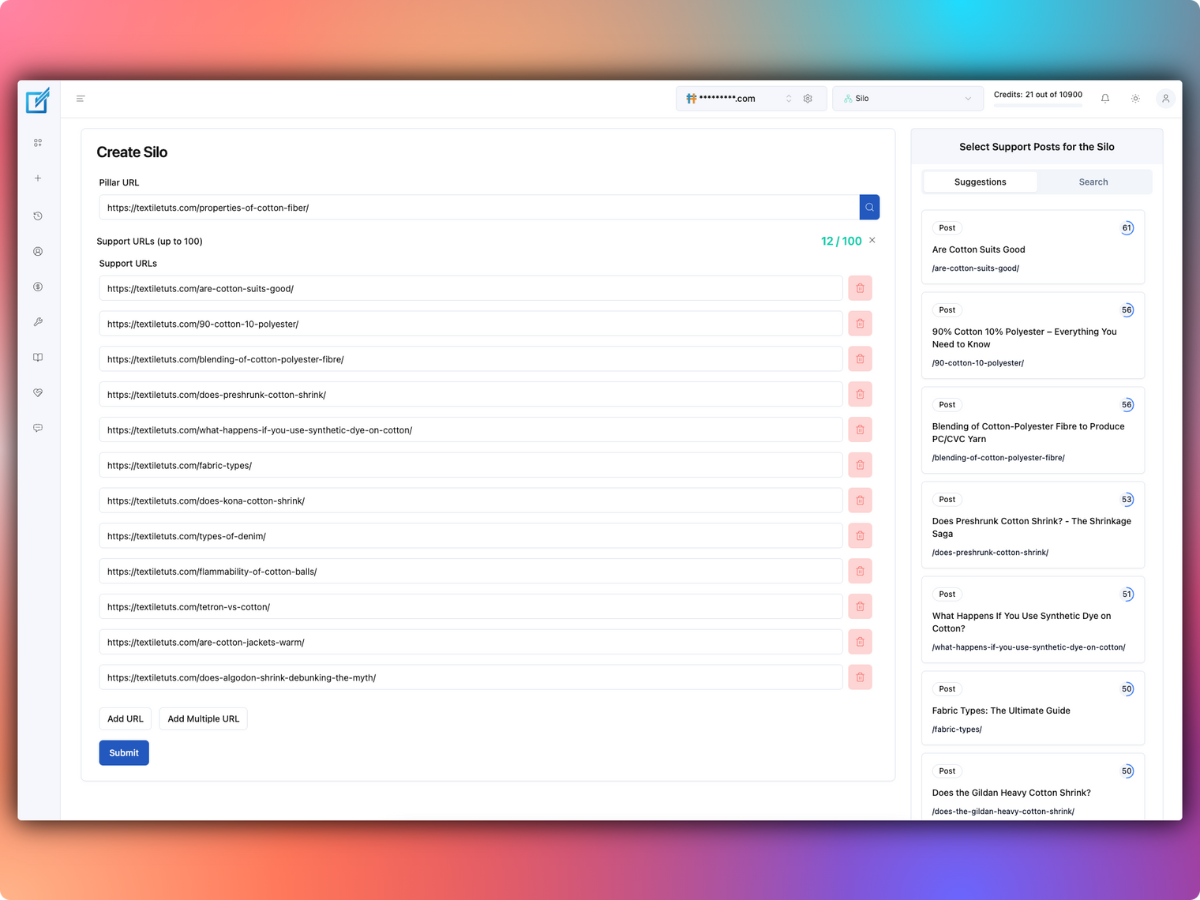
The goal is a helpful information architecture, not merely reducing the orphan counter to zero. Recheck the audit after major publishing, migrations and URL changes.
Is LinkBoss 1-Click Orphan Fix worth using?
It’s a useful workflow to evaluate if you manage a large WordPress content library and want to review proposed sources before publishing links. The documented matching rules and snapshots provide more control than simply inserting links everywhere.
Start with a small batch, verify donor relevance, and inspect the generated copy before you scale. Try the LinkBoss site audit, then follow its official orphan-fix documentation for the current interface.
FAQs about orphan pages
Does an orphan page mean Google cannot index the URL?
No. Other discovery routes, such as a sitemap or direct external links, may exist. An orphan diagnosis means the page lacks incoming internal links in the audited site graph.
Does LinkBoss edit the orphan page?
In the documented 1-Click workflow, the donor page is modified to contain a link pointing toward the orphan. The orphan gains an inbound link.
Can I decline a suggested donor?
Yes. LinkBoss’s Review Pairs stage allows you to untick proposed source-destination matches before submitting the run.