AltTextLab’s Webflow app generates alt text for individual images and page-level image collections inside Webflow Designer. For images connected to Webflow CMS collections, AltTextLab recommends its Web Snippet. The distinction matters: the Designer app writes a description into the image element, while the snippet supplies alt text dynamically through a script and CDN.
For a mostly static Webflow marketing site, I’d begin with the Designer app and its 25-credit monthly free allowance. For a site driven by CMS collections, check whether the subscription-only Web Snippet meets your persistence and accessibility requirements before enabling it.
AltTextLab in Webflow: three different routes
| Method | Where it works | What to consider |
|---|---|---|
| Designer app | Images inside Webflow Designer and ordinary page elements | Saved to image alt attributes |
| Web Snippet | Rendered site images, including dynamic CMS content | Paid subscription and external CDN delivery |
| Custom API integration | Engineering-controlled content workflows | Requires development work to store and display generated text |
AltTextLab’s official Webflow page and Webflow App Marketplace listing document the Designer workflow. Its Web Snippet documentation covers dynamic sites.
How to install AltTextLab inside Webflow Designer
- Open the AltTextLab app listing in Webflow Marketplace.
- Install and authorize it for your Webflow site or workspace, checking the requested permissions.
- Open the site in Webflow Designer and launch AltTextLab from the Apps panel.
- Connect your AltTextLab account and enter the API key if the app asks for it.
- Choose language and preferred writing style, then select a static image on the canvas.
- Generate a description and review its accuracy before saving it to the image element.
The official marketplace listing describes the selected-image view and a page-images workflow. You can generate one at a time or use bulk actions on a page. Exact interface labels can change with app updates.
Generate alt text for a single Webflow image
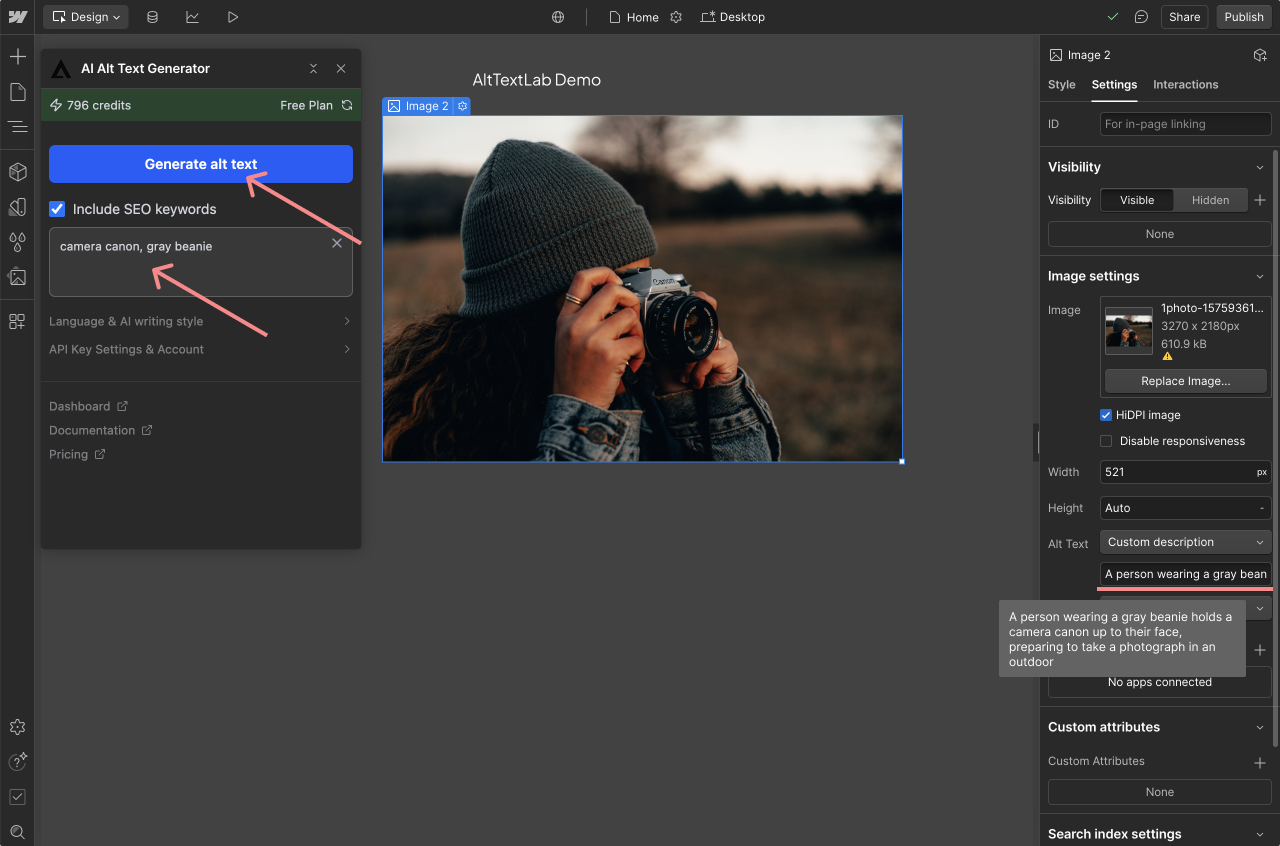
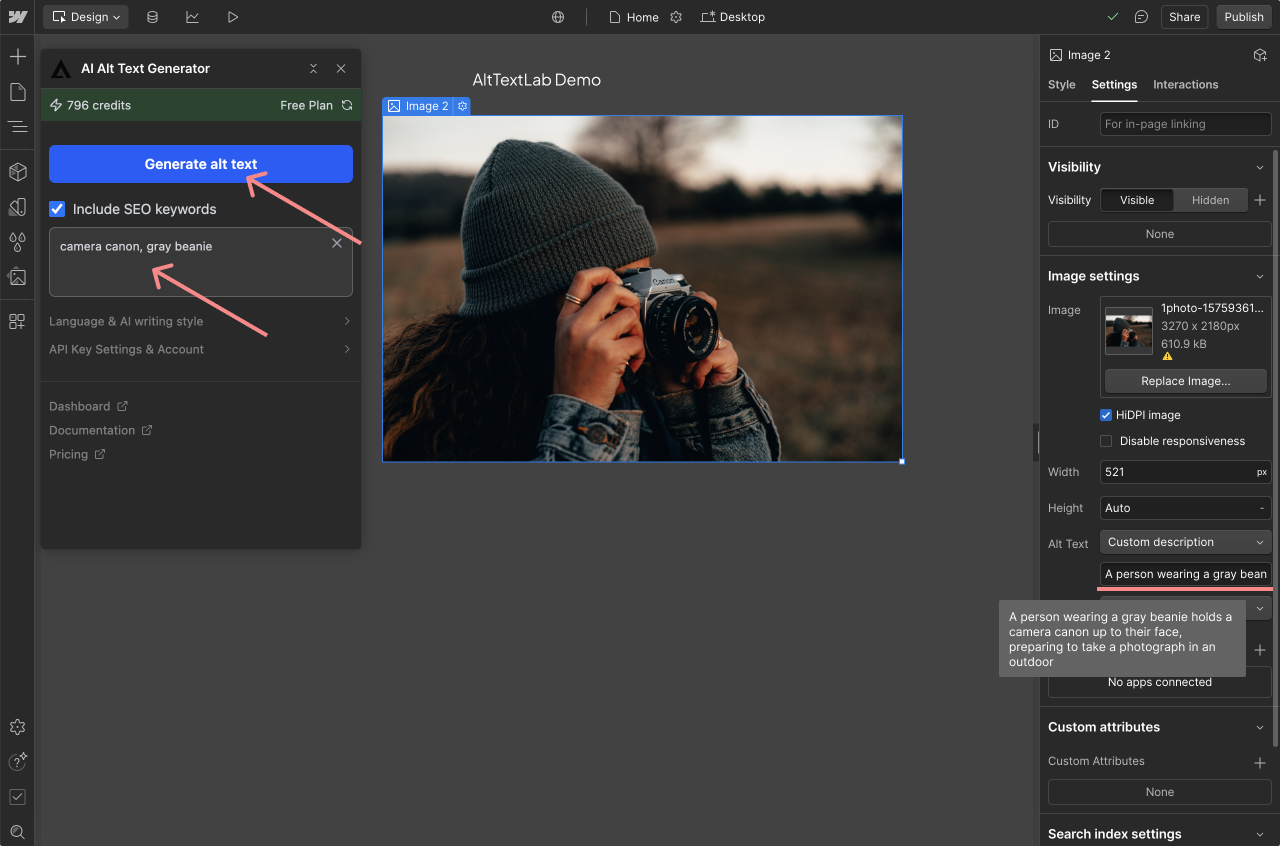
- Select an image element in Webflow Designer.
- Open the AltTextLab selected-image view.
- Optionally add context or a relevant keyword, not a long list of repeated phrases.
- Choose Generate alt text.
- Read the proposed description against the actual image and surrounding page content.
- Edit inaccuracies and apply the text to the appropriate image element.
Webflow’s marketplace description says editors can choose whether a generated value applies to the selected page or to other places where the image is reused. Verify that scope before saving a description that would be inappropriate in another context.
Bulk-generate alt text across a page
The Webflow app’s Page images view scans the current page, lists images and their existing descriptions, and allows individual or bulk actions. It also supports marking decorative images so a screen reader can skip imagery that conveys no essential information.
Start with one page and check the result in the published site. A correct description in the Designer is only one part of the job; you also need to confirm it appears in the actual HTML generated by your Webflow site.
What about Webflow CMS collection images?
This is the biggest limitation to understand. AltTextLab’s own Webflow integration page says its Designer app cannot directly access certain CMS image alt fields that are bound to collection data. It recommends Web Snippet for images loaded through collection lists, CMS templates and other dynamically rendered content.
Web Snippet is not equivalent to saving descriptions to the Webflow CMS database. The script scans images on the rendered page and provides generated descriptions through the AltTextLab service. If your site needs native CMS fields, evaluate other integrations or a custom content workflow instead of assuming the Designer app will write into every collection item.
Example: a portfolio site with 150 CMS projects
- Static homepage images: suitable candidates for the Designer app.
- CMS-generated portfolio cards: vendor directs users to Web Snippet if the image alt field is inaccessible through the Designer app.
- Repeated project thumbnail: check the text in each usage context rather than assuming one description is always appropriate.
- Critical accessibility content: consider managing descriptions directly in CMS data where possible.
How Web Snippet works on Webflow
AltTextLab supplies a personalized script for use in your site’s head or through Google Tag Manager. It scans rendered images without alt text, including images injected through JavaScript or CMS templates, and caches generated descriptions on its CDN.
AltTextLab says the snippet generates once per image and serves the cached text to later visitors. However, a script delivered at runtime introduces a dependency on the vendor and the browser’s successful script execution. Review your Webflow custom-code permissions, CSP settings and performance behavior before making this your only accessibility workflow.
What happens if you cancel AltTextLab?
AltTextLab’s Web Snippet FAQ says generation for new images stops on cancellation. Previously generated descriptions remain available through its CDN for 30 days, then stop being served. AltTextLab says the text remains stored in your AltTextLab account and can be restored when you reactivate.
Descriptions saved directly into a Webflow image’s native alt attribute are a different situation: the text is part of the page element. Our Web Snippet versus native plugin guide explains the persistence trade-off in more detail.
Does AltTextLab work with Webflow SEO keywords?
The Webflow app provides keyword controls and language settings. AltTextLab says it supports descriptions in more than 130 languages and several writing styles. Use the keyword setting to guide relevant phrasing, not to force an optimization phrase into every image.
A decorative hero background might need an empty alt attribute, while a diagram illustrating a signup process may need a short description of its steps. Use the W3C’s image guidance for the distinction.
How many credits will Webflow generation use?
AltTextLab gives free accounts 25 credits every month. Pro plans start at $5/month for 100 credits, with larger allowances and discounted annual options. The subscription-only Web Snippet is not included with the free tier or one-time packs.
Example: 12 static images plus 18 CMS thumbnails
- Static images: 12 candidate generations through the Designer app.
- CMS thumbnails: 18 candidate generations through Web Snippet if the app cannot edit their bound alt fields.
- Combined initial requirement: 30 credits, before any regenerations.
- Cost implication: the 25-credit free balance may be insufficient for the whole set, and Web Snippet requires a paid subscription regardless.
That example assumes every image needs a description. Decorative images or existing acceptable alt fields should not be counted as mandatory generation work. Compare plans on AltTextLab’s pricing page.
Could another Webflow integration fit better?
AltText.ai’s official Webflow documentation describes connecting directly to Webflow CMS collections using webhooks, writing generated alt text back into the staged collection item and including it in the next site publish. That is a material difference from a runtime-only snippet.
If your primary problem is missing alt text in hundreds of CMS items, compare AltTextLab with AltText.ai’s native CMS integration before choosing. The right option depends on whether you want descriptions stored in CMS data or delivered dynamically.
When would I recommend AltTextLab for Webflow?
- Static marketing site: start with the Designer app for its editing controls and recurring free allowance.
- Image-heavy landing pages: use the page-level bulk workflow, with editorial checks.
- CMS-heavy blog: treat the Web Snippet dependency as a significant buying consideration and compare direct-to-CMS alternatives.
- Custom developer workflow: consider generating descriptions through an API and writing them into your own content database.
My recommendation: choose AltTextLab’s native Webflow app for ordinary Designer images. For CMS-bound images, do not buy the Web Snippet without first checking whether its 30-day cancellation limitation and runtime delivery match your needs. Explore AltTextLab’s Webflow options.
Webflow alt-text FAQs
Can the AltTextLab Designer app update Webflow CMS items?
AltTextLab states that CMS-bound alt fields aren’t directly accessible to the Designer app in the same way as ordinary image elements. It suggests Web Snippet for dynamic CMS images.
Does Web Snippet permanently write alt text to Webflow?
Not in the same way as a native CMS edit. It serves generated text at runtime through AltTextLab’s delivery system.
Can I mark an image as decorative?
The Webflow marketplace listing describes decorative-image controls in the page-images view. Use this for visuals that truly convey no information.