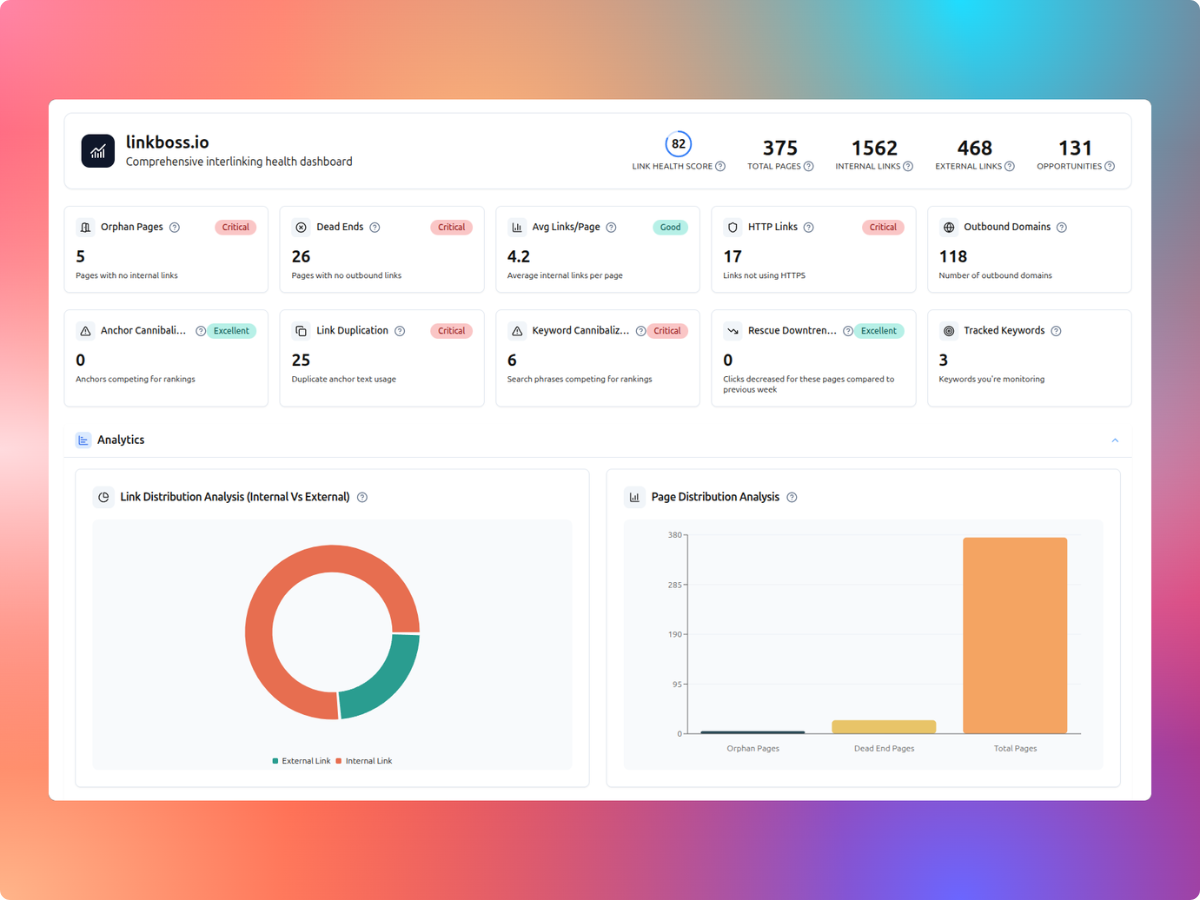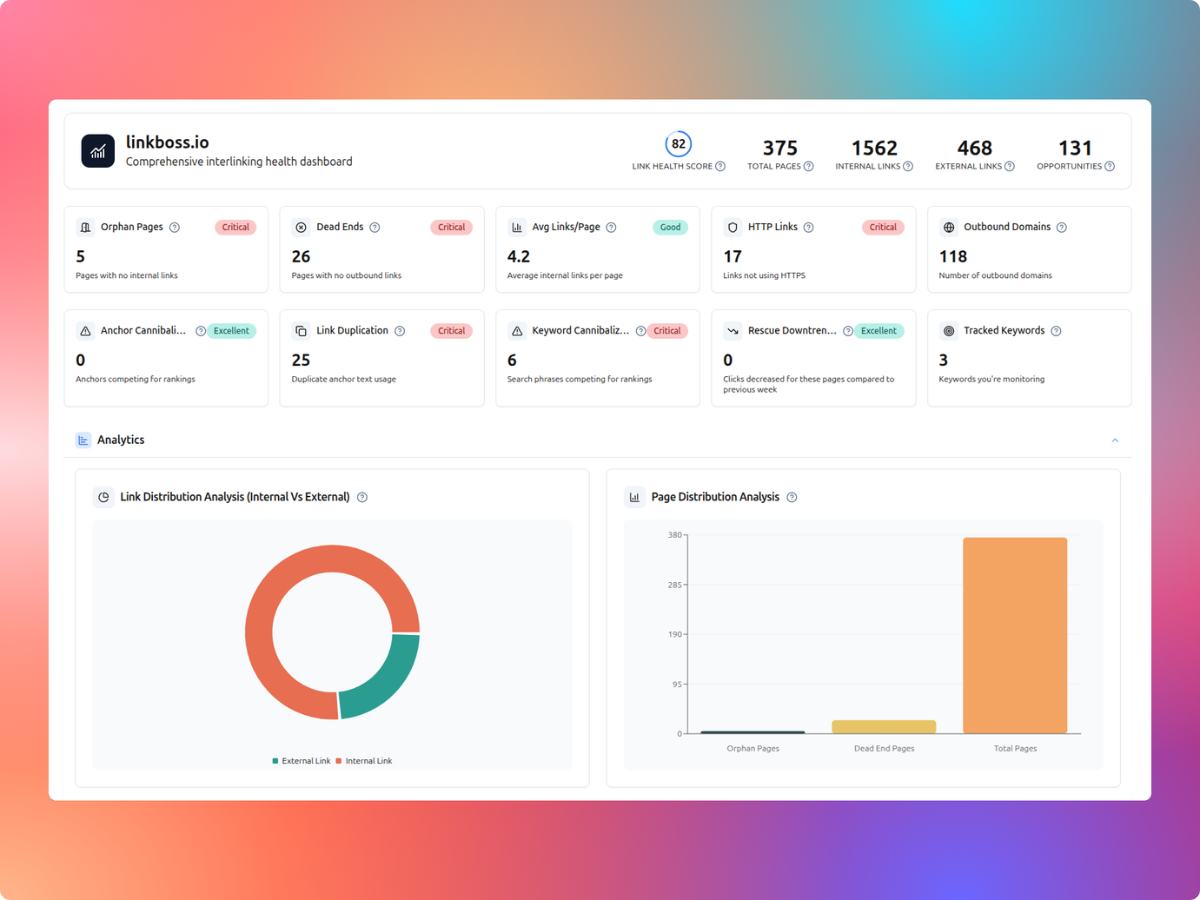
LinkBoss’s 1-Click Dead End Fix adds one relevant outbound internal link to each selected dead-end page. Its October 2026 workflow suggests target URLs, lets you set semantic similarity and destination caps, and saves snapshots so changes can be rolled back.
A dead-end page has no outbound internal links to other content on your website. This is different from an orphan page, which lacks incoming internal links. A page can be one, the other, both, or neither. The objective is to help readers continue to useful content, not force every page to have a link.
How to find dead-end pages in LinkBoss
- Connect your WordPress site and synchronize published content.
- Open your LinkBoss project dashboard.
- Find Dead Ends in the At a glance section.
- Review the flagged pages, especially content that is no longer current or should be excluded.
- Open Opportunities → Quick Fix Deadends, then click 1-Click Fix.
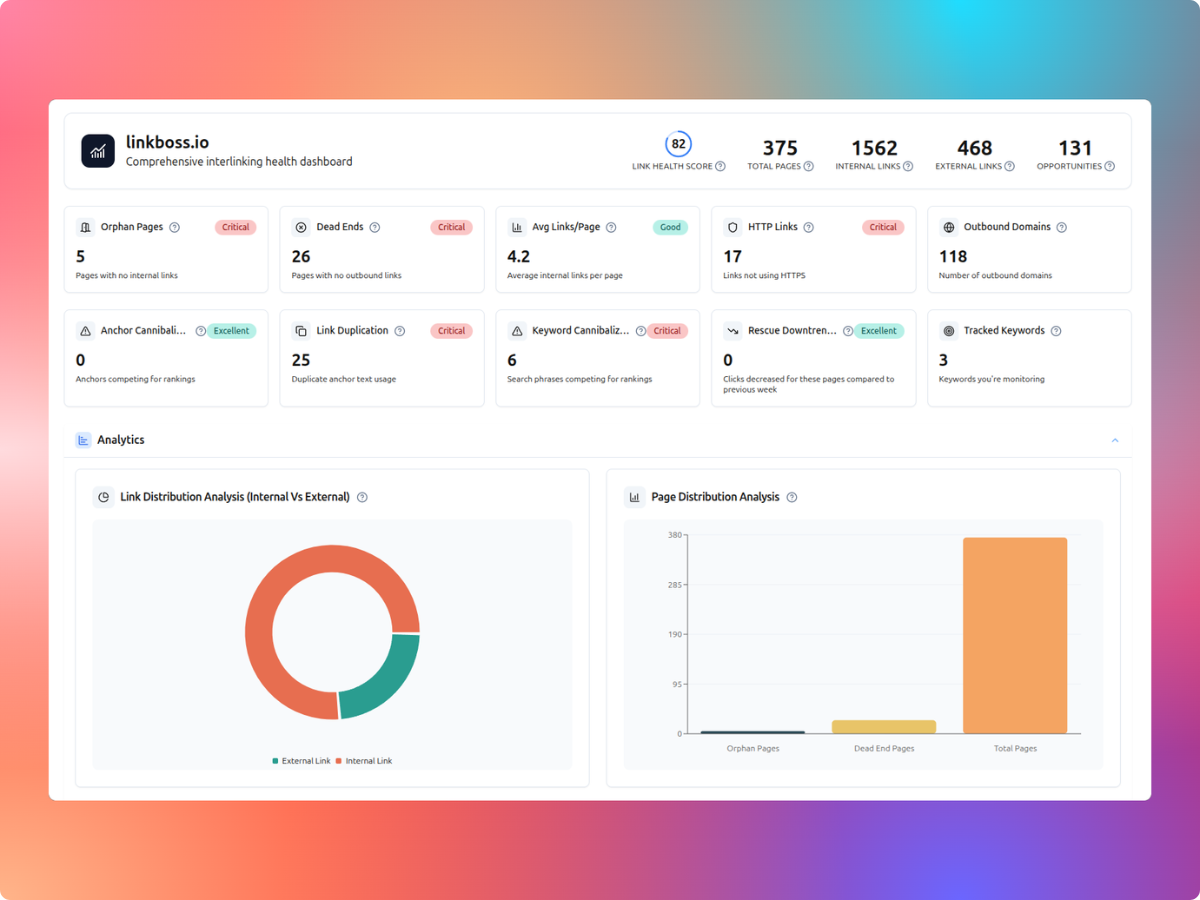
The sequence above comes from LinkBoss’s official Dead End Fix documentation, updated October 14, 2026. The vendor may change button labels later.
Configure the matching rules
The Solve Dead End Pages dialog includes three important controls.
- Minimum semantic similarity: candidates below the threshold are excluded. LinkBoss documents a default of 70%, although a match score is not a substitute for reviewing topical relevance.
- Maximum dead ends pointing to one target: default of three in the current guide. This keeps a run from assigning every source to the same destination. The cap applies to links created in that run.
- Prefer orphan pages as targets: if enabled, pages lacking inbound links can be prioritized, helping address two classes of issue at once.
Use Configure to review insertion preferences, including whether an existing sentence can be linked or AI-generated context may be added. Then click Find Targets.
Review the proposed links before insertion
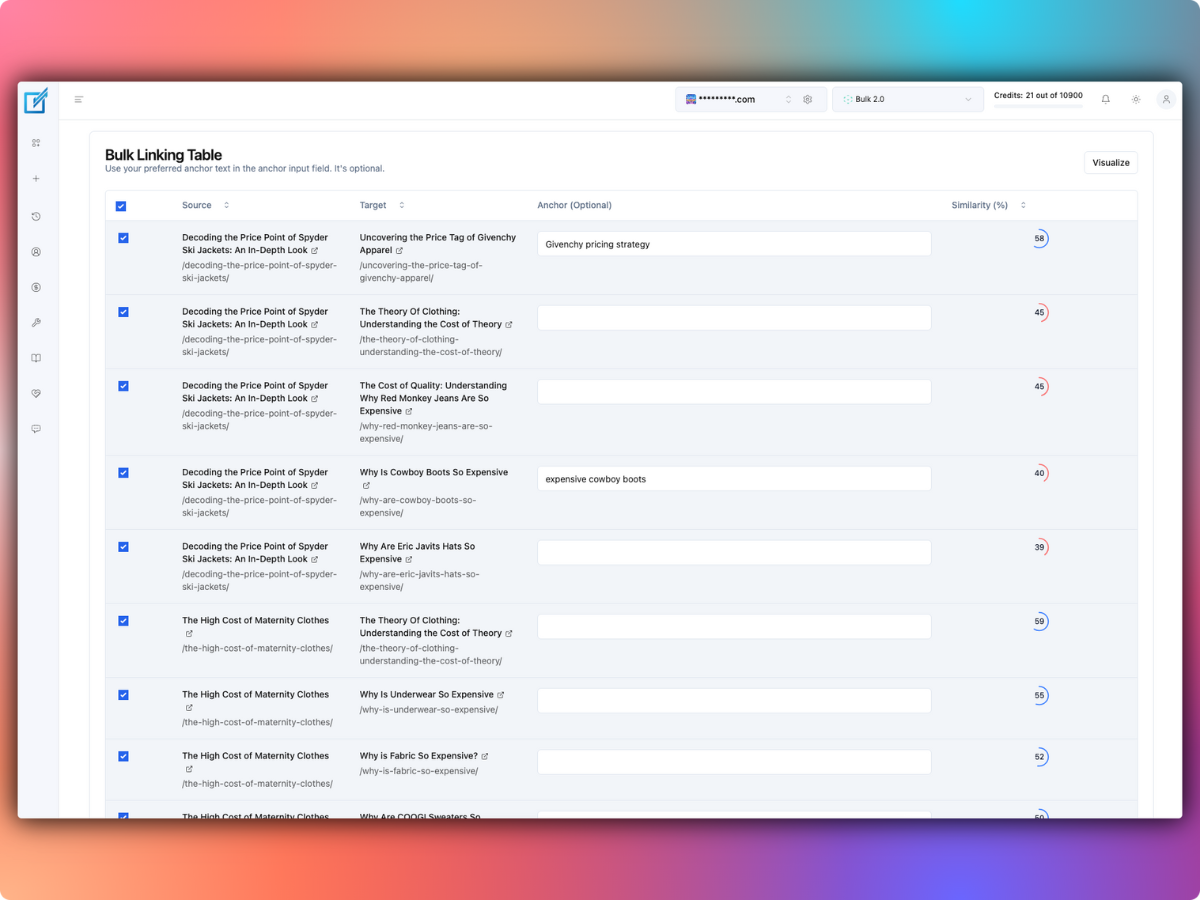
LinkBoss scores candidate target pages and builds source-to-destination pairs. Its Review Pairs screen shows the dead-end source, the suggested target, a similarity score and credit cost. You can deselect any pair you don’t approve.
| Proposed link | Editorial decision |
|---|---|
| Tutorial → next tutorial | Useful if the target really is the next step. |
| Product review → relevant alternative | Useful when it helps a buyer compare options. |
| Contact page → random blog post | Usually unnecessary; don’t force a link for the metric. |
| Outdated announcement → updated guide | Consider redirecting or revising the announcement instead. |
An algorithmic match may connect pages sharing words but addressing different audiences. Open the source and target to verify intent, then approve only links that actually improve navigation.
Create and verify the dead-end fixes
- Select the reviewed pairs.
- Click Create Links and confirm with Submit.
- The tool saves a snapshot of each dead-end source before editing.
- Open Manage Bulk to check processing status.
- Use Refresh until completed rows appear.
- Preview the edited sentences and open several live pages to confirm anchor relevance.
Under the current one-click flow, one new outbound link is added per approved dead-end page. The source dead-end page is edited and snapshotted; the target is linked to, not modified simply because it receives an inbound link.
How many credits does the workflow use?
LinkBoss distinguishes placing an internal link inside existing text from generating a new sentence around the link. Its published pricing describes one credit for the existing-sentence method and two for generated context.
Example: 60 dead-end pages
- Suppose 45 source pages have a suitable existing anchor: 45 × 1 = 45 credits.
- Suppose 15 need generated context: 15 × 2 = 30 credits.
- Total estimated cost: 75 credits to add 60 links.
Check the actual cost on the Review Pairs screen before submitting. LinkBoss Launch advertises 200 credits monthly for one website at $11/month; compare larger allowances in our LinkBoss pricing guide.
When should you turn on “Prefer orphan pages as targets”?
Consider enabling this setting when your site has valuable orphan content that deserves new incoming links. For example, a useful comparison article with no internal incoming links may be a sensible destination from a related review page that currently links nowhere.
But this should not override relevance. If the orphan is outdated, thin, or unrelated to a dead-end source, choose another target or skip the pair. Address duplicates and outdated pages before automatically promoting them through the content network.
How to undo the added links
LinkBoss’s documentation describes a Compare & Revert control for individual completed rows. It shows the snapshot next to the changed page and highlights the inserted content. You can revert one page or use Bulk Revert Completed to restore the entire run.
Rollback can affect content edited since the snapshot was taken. Coordinate with your editorial team before reverting a batch and keep a separate WordPress backup. Vendor rollback tools are useful safety features, not substitutes for a versioning and backup process.
What if a page has no suitable destination?
Skip it. A short legal page, confirmation page or one-off campaign landing page may not need an outbound contextual link. For a substantive guide, the absence of a destination may signal an actual content gap. Consider creating a useful follow-up guide or a related category hub instead of pointing somewhere irrelevant.
Fixing dead ends versus fixing orphans
| Issue | Missing relationship | Which page gets edited? |
|---|---|---|
| Dead end | Outbound internal link | The dead-end page, which gains a new outgoing link |
| Orphan | Inbound internal link | A relevant donor page, which gains a link to the orphan |
These are complementary approaches. Our orphan-page walkthrough explains donor matching and source snapshots for the opposite problem.
Should you use LinkBoss for dead-end cleanup?
The one-click workflow is useful when you have many related articles and want a controlled process for finding targets, limiting repetition, and approving the changes. It is less valuable when the flagged pages deliberately have no relevant internal destination.
Audit your site, choose a small sample, review target relevance, and verify the actual rendered pages after insertion. Explore LinkBoss’s free site-audit tools.
Dead-end page FAQs
Does LinkBoss add several new links to one dead-end page?
The October 2026 1-Click Dead End Fix guide states that this workflow adds exactly one new outbound internal link per selected dead-end source.
Can one run fix dead ends and orphans?
Yes, if you enable the setting to prefer orphan pages as targets and the proposed pairs make editorial sense.
Can I reject an irrelevant match?
Yes. The Review Pairs interface allows you to untick proposed matches before the run changes content.