LinkBoss Bulk 2.0 can place internal links using three methods: Native Insertion, Precision Rephrase and Context Insertion. In Single mode, it uses one method for every proposed link. In Pipeline mode, it tries them in sequence until a suggestion passes the configured semantic-similarity threshold.
The important editorial decision is how much you allow the software to change. Linking an existing phrase is a lighter edit than rewriting a sentence or appending fresh copy. Choose insertion behavior before you process a large WordPress archive.
LinkBoss Bulk 2.0 insertion methods compared
| Method | What changes | Best use |
|---|---|---|
| Native Insertion | Turns an existing suitable phrase into a link | Preserving carefully edited content |
| Precision Rephrase | Rewrites part of a sentence to fit a link | Cases where a relevant phrase is almost present |
| Context Insertion | Adds 2–3 new sentences around the link | When a relevant link needs additional context |
LinkBoss describes these methods on its Bulk 2.0 product page. You can choose one module or configure a Pipeline that tries Native, then Rephrase, then Context.
Choose your similarity preset carefully
The official interface presents three Pipeline presets. The percentages are internal matching thresholds, not externally validated measures of link quality.
| Preset | Native | Rephrase | Context |
|---|---|---|---|
| Conservative | 75% | 55% | 45% |
| Balanced | 60% | 40% | 30% |
| Aggressive | 40% | 20% | 15% |
Start with Conservative when preserving editorial accuracy is critical. Balanced admits more suggested placements, while Aggressive may create matches that need much more manual checking. A high similarity number does not prove a link belongs in a paragraph.
How to prepare a bulk linking run
- Back up the site: preserve the WordPress database and published content.
- Identify your linking target: choose a genuinely useful group of pillar pages or orphan URLs rather than the entire archive.
- Check synchronization: make sure LinkBoss has the current published content, including relevant custom post types.
- Open Bulk 2.0: choose New Bulk from the dashboard.
- Import URLs: paste selected URLs or use the category-based orphan importing controls documented by the vendor.
- Configure limits: set maximum inbound and outbound links, reciprocal-link preferences, similarity rules and insertion mode.
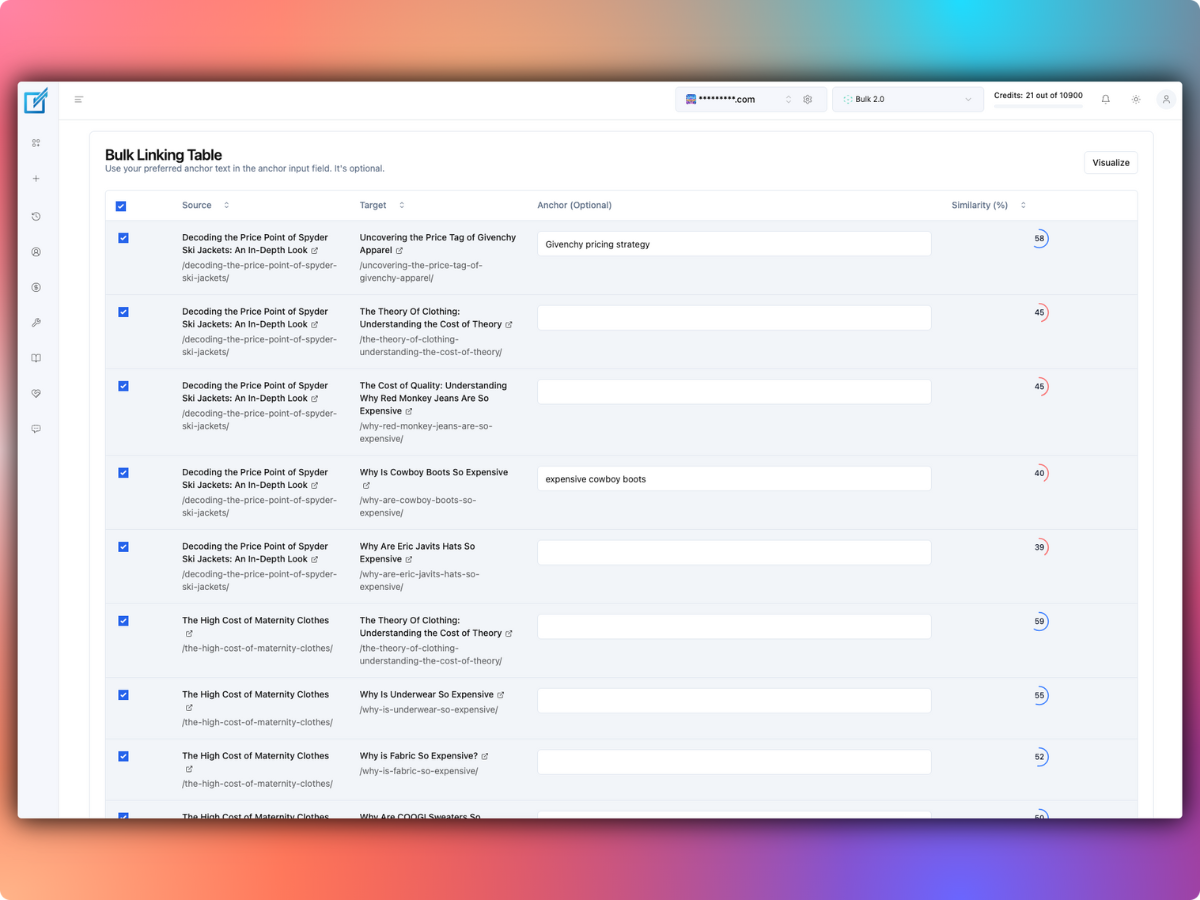
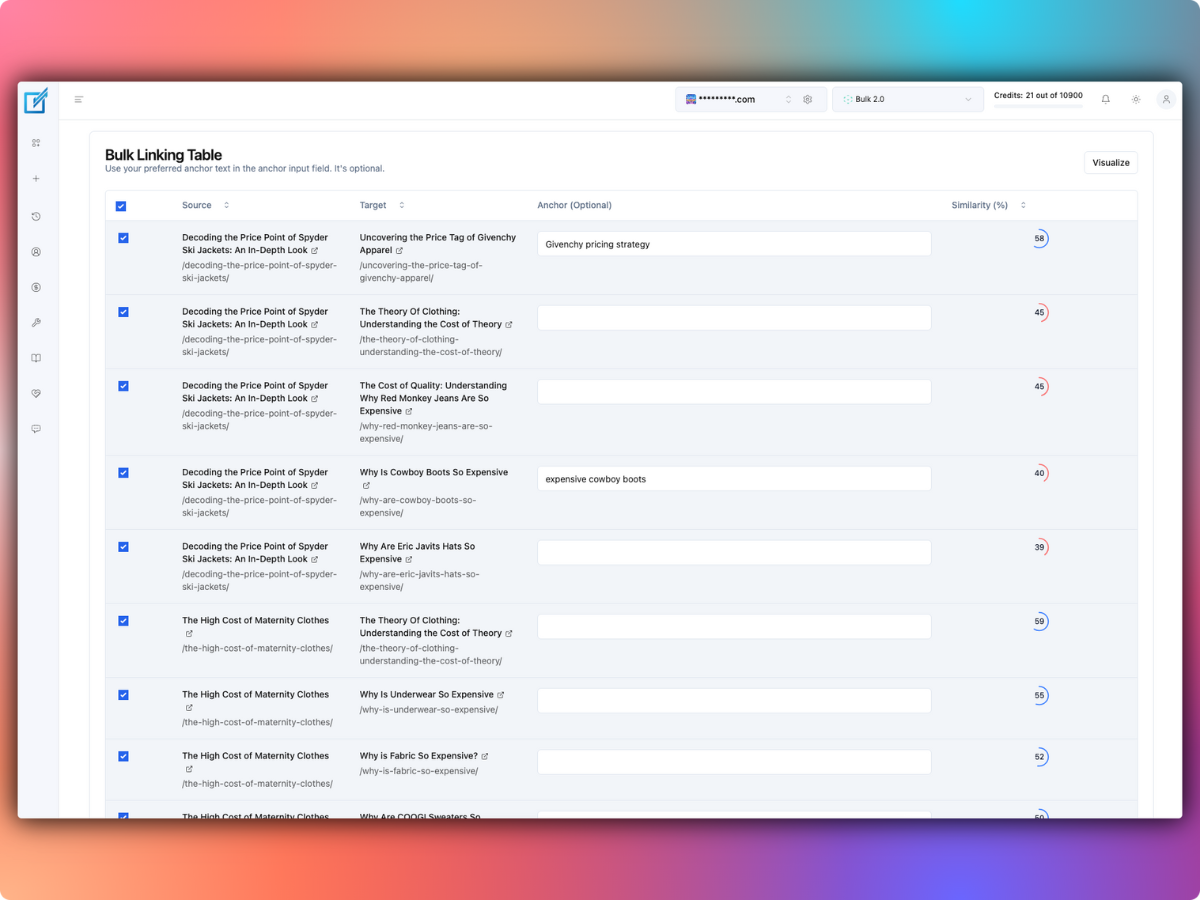
- Generate suggestions: inspect pairs before approving.
The vendor’s Bulk 2.0 workflow guide also describes a Visualize option to identify which planned destination pages are still missing links.
Single mode versus Pipeline mode
Single mode: predictable content changes
Single mode applies only the method you select. If you pick Native Insertion, the tool does not fall back to generating sentences for a match it cannot place. That can mean fewer completed links, but it keeps the editing behavior consistent.
Pipeline mode: more coverage, more editorial review
Pipeline mode checks whether Native meets its threshold, then attempts Rephrase and Context if needed. The vendor positions this as the route for completing more proposed connections.
For a tightly edited knowledge base, a higher completion rate is not automatically better. Ask whether the generated sentences sound as if they belong in the article and introduce information that can be supported by the page.
Review link suggestions before publishing
The product page describes a paragraph-level preview showing the source, destination, similarity score and anchor in surrounding text. Use that review stage to reject unnatural links rather than approve everything.
- Check relevance: would a reader genuinely want to open the destination?
- Check wording: does the anchor describe the target’s content?
- Check factual integrity: do generated sentences add unsupported claims?
- Check repetition: does the page already link to this or an equivalent destination?
- Check placement: would a link interrupt the article’s conclusion or a sensitive instruction?
How many credits will Bulk 2.0 use?
LinkBoss’s pricing guides describe existing-sentence linking at one credit and generated-context insertion at two credits. Check the cost reported for your selected run because pricing may vary with mode and current terms.
Example: 200 approved link pairs
- 150 can be inserted into existing text: 150 credits.
- 50 use the two-credit generated-context route: 100 credits.
- Estimated total: 250 credits.
- The published 200-credit Launch allowance alone would not cover this illustrative mix; a larger tier or additional credits may be appropriate.
These are hypothetical insertion counts, not a reported LinkBoss performance result. Our LinkBoss pricing breakdown explains credits and site limits.
Can you use Bulk 2.0 to fix orphan pages?
Yes. The vendor documents importing orphan URLs, requesting suggested donors, adjusting the matching threshold, and checking the Visualize view for uncovered pages. It also provides a newer dedicated 1-Click Orphan Fix workflow.
Use our orphan-page walkthrough if the problem is specifically missing inbound links. Bulk 2.0 makes more sense when you’re configuring a broader campaign with multiple types of connections.
Verify the results on the live website
- Check the bulk-processing status in LinkBoss.
- Open a random sample of source pages from different categories.
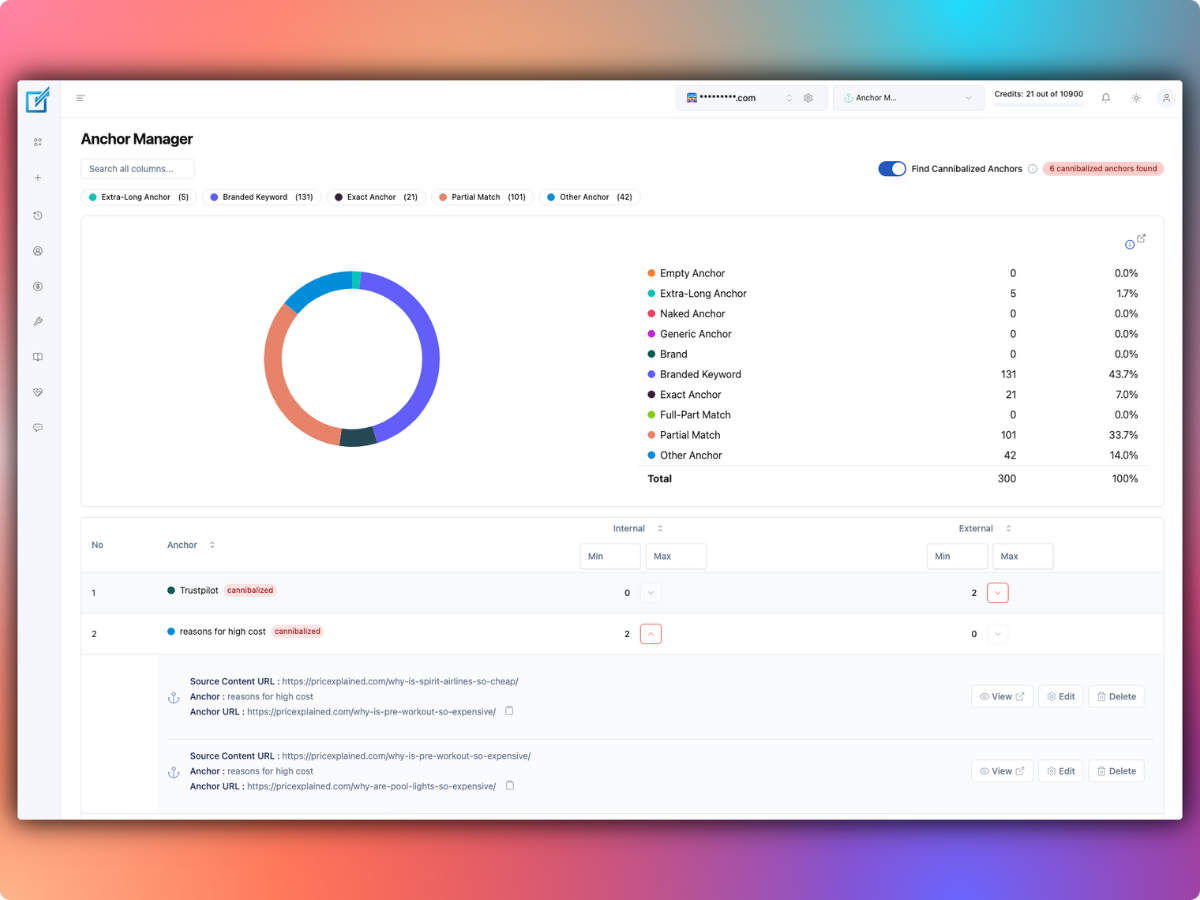
- Inspect the actual inserted anchors and target URLs.
- Look for repeated links, missing punctuation, or generated sentences that disrupt the original explanation.
- Review the content on mobile as well as desktop.
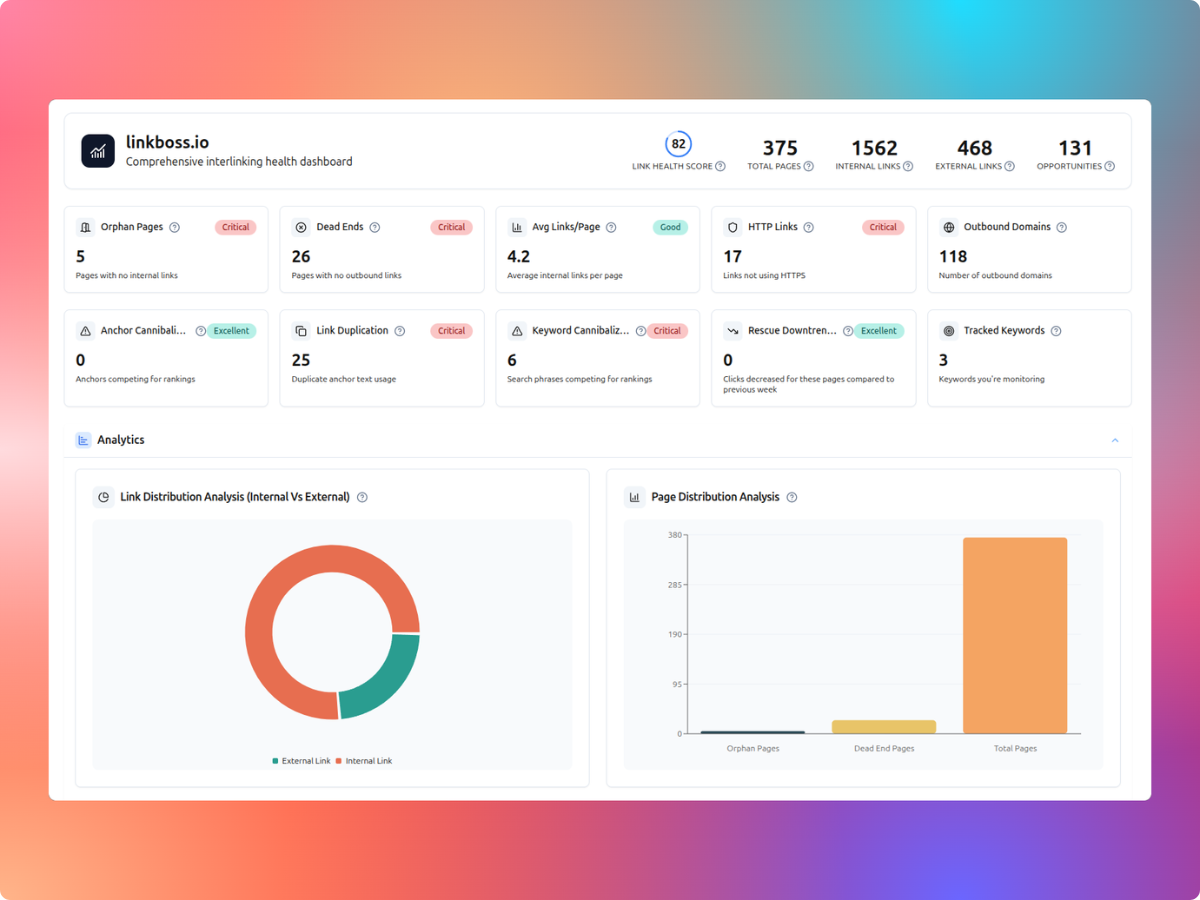
- Re-run the site audit and compare the link network, without assuming a dashboard improvement guarantees rankings.
Rollback and backups
LinkBoss advertises previews and rollback for individual or bulk edits. Review the exact rollback method before publishing at scale. An application-level snapshot may replace content changed by a teammate after the run, so coordinate large reversions and retain an independent WordPress backup.
For a revenue-critical site, I would start with 10–20 reviewed pages, inspect every changed paragraph, then gradually increase the batch size. This allows editorial problems to surface before hundreds of pages are affected.
Which Bulk 2.0 method should you use?
- Choose Native for a content library with carefully reviewed copy and suitable existing anchor phrases.
- Choose Precision Rephrase if you are comfortable reviewing modest wording changes.
- Choose Context Insertion only when additional generated sentences make an otherwise awkward link genuinely useful.
- Choose Pipeline if completing more relevant links matters and your team has time to review varied edit types.
The strongest option is the one that improves navigation without lowering the quality of your content. Explore LinkBoss’s bulk interlinking workflow.
LinkBoss Bulk 2.0 FAQs
Does Bulk 2.0 always generate new sentences?
No. Native Insertion uses an existing phrase. Context Insertion adds generated sentences, and Pipeline can move between the methods based on matching thresholds.
Are the similarity percentages guaranteed accuracy rates?
No. They are vendor-defined matching thresholds. You still need to review anchor relevance and sentence accuracy.
Can I undo an unwanted batch?
LinkBoss advertises batch rollback controls. Back up the website and check for independent editorial changes before restoring old snapshots.