
One of the biggest expenses in AI video production is footage you never end up using. In a November 2026 discussion on Reddit, a creator wondered how people could afford to post AI videos every day when maintaining subscriptions to several leading generators could cost hundreds of dollars a month.
Another recurring problem is consistency. A character can look exactly how you imagined in the first shot, only for their clothes or facial features to change in the next. A creator in r/aifilmmaking described precisely that problem earlier this month.
Both issues matter when choosing an AI video generator. The model you use affects what you can generate, but the surrounding software determines how you manage characters, edit existing footage, compare takes and assemble a finished video. And increasingly, you can access the same video models through several competing platforms.
Below, we’ve compared eight AI video generators for filmmakers, marketers, social media creators and businesses. You’ll find what each platform is good at, the controls it offers, how much you’ll pay, and the limitations you should know about before choosing a subscription.
Affiliate disclosure: ToolFountain may earn a commission if you purchase through an affiliate link, at no extra cost to you. This guide is based on current vendor documentation, published pricing and available user experiences rather than our own controlled video-generation benchmark.
Key takeaways
- Runway is a strong fit for creators who want to generate individual shots and make precise changes to existing footage. Its Aleph editing workflow lets you review a still-frame change before applying it to the video.
- Google Flow is a good place to start on a small budget: Google currently gives eligible users 50 credits daily even without a paid subscription.
- Oakgen brings several video, image and audio models into the same account. Its Basic plan starts at $9/month with 2,000 credits, but each model and generation setting has its own cost.
- Kling 4.0 is worth considering for longer continuous shots. It supports generations up to 30 seconds, with controls for multiple keyframes and reference assets.
- Luma and Higgsfield serve more specialized production needs. Luma supports video transformation and professional color formats; Higgsfield provides explicit controls for camera direction, casting and cinematic treatments.
- Evaluate the cost of an accepted shot, including failed creative attempts. A cheap five-second draft does not necessarily cost less to finish than an expensive generation you can use immediately.
The best AI video generators compared
These are the regular individual subscription rates in US dollars where available, rather than temporary promotional prices. A paid plan’s monthly credit allowance is not directly comparable to another vendor’s.
| Software | Best for | Free access | Starting price |
|---|---|---|---|
| Runway | Directing and editing individual shots | 125 one-time credits | $15/month; $12/month annually |
| Google Flow | Affordable scene generation and conversational revisions | 50 credits/day for eligible users | Google AI Plus; regional prices vary |
| Oakgen | Multi-model video and cross-media content workflows | No regular free plan verified | $9/month |
| Kling AI | Long takes, complex motion and keyframe control | Check account availability | Current direct subscription rate not verified |
| Luma | Footage transformation and post-production formats | Limited trial access | $30/month; $25/month annually |
| Higgsfield | Cinematic direction and commercial concepts | Free account, no monthly credits | $19/month |
| Adobe Firefly | Video generation in Adobe production workflows | Limited daily generations | $9.99/month |
| Pika | Short social videos, character-led clips and storyboarding | Free account, credit packs required | $10/month |
Product and pricing information was checked on November 26, 2026. This guide covers creative footage generators, rather than focusing on AI presenters and screen-recorded training videos. If you primarily need a talking presenter delivering a script, an avatar platform may suit that workflow better.
What to look for in an AI video generator
The easiest way to narrow your shortlist is to work backward from the video you’re trying to make. A six-second animation for a product page and a short film with a recurring cast come with very different requirements.
- Reference inputs: Can you upload product photographs, character sheets, starting and ending frames, or existing footage? Find out what the model does with each reference. Using a video to guide motion is different from using it as material to edit.
- Direction and timing: Look for camera controls, clip durations, keyframes and the ability to describe actions in sequence. For a product reveal, the movement and the moment the product becomes visible may matter more than the surrounding scenery.
- Continuity between shots: Check how you reuse character and location references, whether assets can be saved, and whether the platform helps you organize multiple scenes. Test this across a sequence rather than judging one isolated clip.
- Video editing: Can you replace a background, change a wardrobe or remove an object from existing footage? It is often easier to modify a nearly correct take than generate another one from scratch.
- Audio: Some models generate dialogue and environmental sounds with the video. Others require separately produced audio. Decide whether you need the sound to be editable independently of the footage.
- Delivery formats: Check native resolution, available aspect ratios, frame rates and export formats. An upscaled file is not the same as a native high-resolution generation. For compositing and color grading, professional formats such as ProRes or EXR can be important.
- Production costs: Compare the model-specific prices for the resolution and duration you need, along with the cost of editing and repeated attempts. Check concurrent generation limits if several people need to work at the same time.
The 8 best AI video generators in 2026
1. Runway
Best for: Creative teams that need to generate individual shots and make controlled edits to footage.
Runway is a video and image generation workspace with a growing catalog of its own models and third-party models. What makes it particularly useful for production is the ability to start from a piece of footage and work on it, rather than treat each new prompt as an entirely new shot.
For new footage, Gen-4.5 supports both text-to-video and image-to-video. Text-to-video is useful when you haven’t established the composition yet. With image-to-video, you can supply the starting frame and concentrate your prompt on the movement you want to see. The model supports clips between two and ten seconds at 720p, and the image-led workflow offers horizontal, vertical, square and other frame shapes.
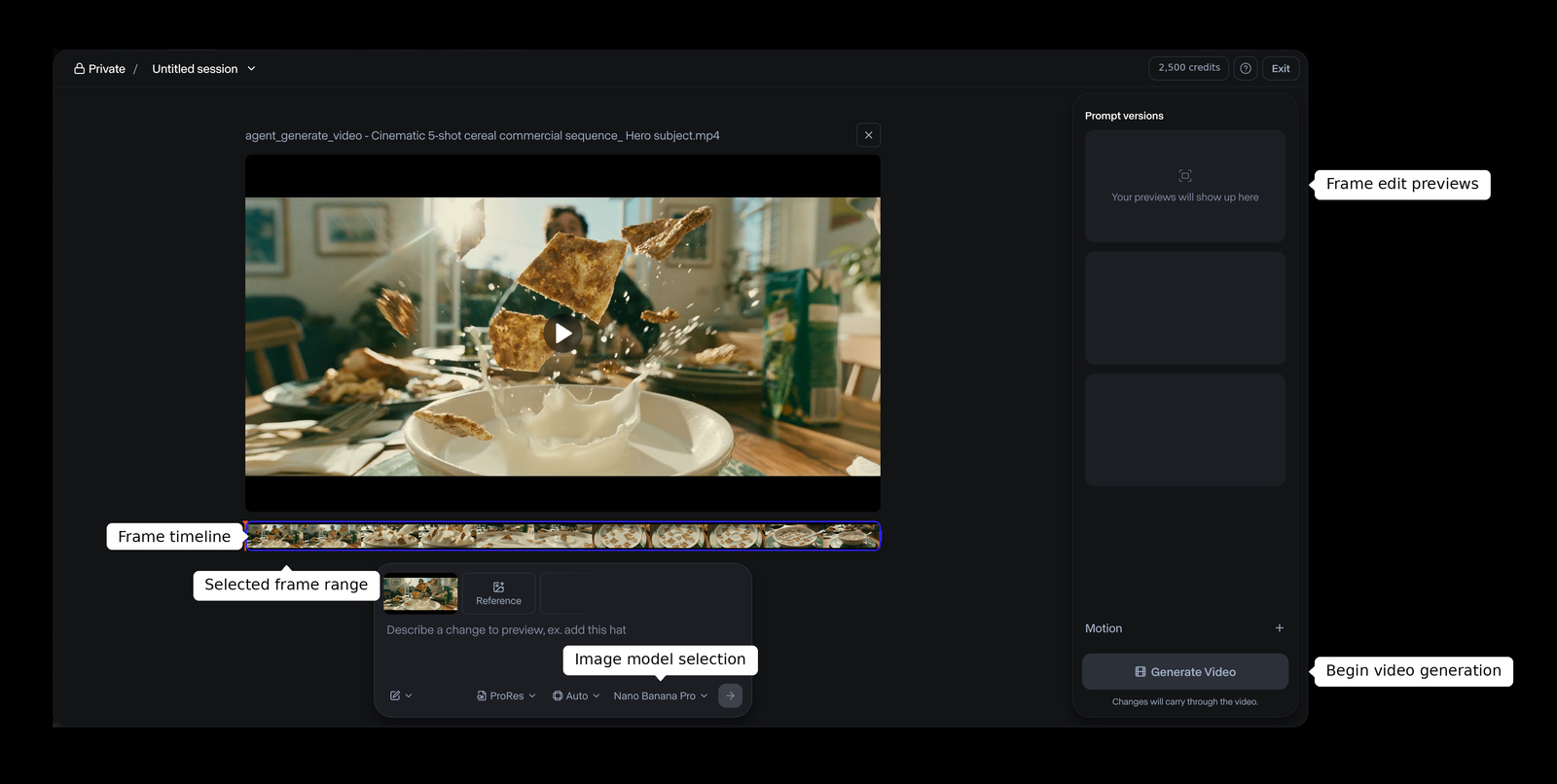
Runway’s Edit Studio is arguably a more interesting feature for a team that already has footage. It uses Aleph 2.0 to carry an edit made on a selected frame through the rest of a clip.
If a product in a shot needs replacing, you can work on a frame where the product is clearly visible, provide a reference, preview the adjustment and then generate the modified footage. That gives you a chance to catch a bad composition before paying for the full video edit.
Runway has also introduced plugins for Adobe Premiere Pro and DaVinci Resolve Studio. These allow you to generate or restyle footage from within a familiar editing environment and bring the result into the timeline. If an editor spends most of the day in one of those applications, that may be more valuable than another browser-based prompt interface.
Key features
- Gen-4.5: Generate a new shot from a description or starting image, with configurable clip length and frame rate.
- Edit Studio (Aleph 2.0): Modify existing footage by selecting a keyframe, preparing an image edit and applying that adjustment across the selected video.
- Reference media: Reuse source assets across sessions and supply compatible references to guide new generations.
- Third-party video models: Access alternative model families from within Runway, with model-specific capabilities and prices.
- Agent and Studio: Develop creative projects and arrange or trim generated clips on a timeline.
- Generative audio: Produce supporting voice, music and sound effects from the same workspace.
- Editing plugins: Generate and transform footage in compatible versions of Premiere Pro and DaVinci Resolve Studio.
- Professional output: Eligible higher plans support ProRes and PNG sequence export for certain workflows, as well as upscaling.
Runway pros
- You can preview a frame-level edit before committing to a full video modification.
- The editing plugins reduce the need to move repeatedly between generation and finishing applications.
- Paid plans offer access to a range of video and image models rather than locking you to Gen-4.5.
- The Max plan includes a one-month rollover for unused credits, useful when production volume fluctuates.
Runway cons
- The free allowance is a one-time grant, and Gen-4.5 requires a paid plan.
- Gen-4.5 generates at 720p natively; upscale or consider a different model if your brief requires higher-resolution output.
- Professional output settings can increase the credit cost. For instance, qualifying ProRes and PNG sequence generation adds five credits per second to the base Gen-4.5 rate.
- The entry subscription’s allowance can be exhausted quickly if a shot requires several takes or video edits.
Runway pricing
| Plan | Monthly | Annual monthly equivalent | Credits |
|---|---|---|---|
| Free | $0 | $0 | 125 once |
| Standard | $15 | $12 | 625/month |
| Pro | $35 | $28 | 2,250/month |
| Max | $95 | $76 | 9,500/month |
| Enterprise | Contact sales | ||
At the published Gen-4.5 rate of 12 credits per second, a five-second clip costs 60 credits. Standard provides enough for ten such clips, with 25 credits left.
If you generate three versions of each shot, that covers only three groups of takes. Pro would cover 37 five-second generations at the same rate.
The current Runway plan comparison details storage and concurrency: Standard allows five simultaneous generations, Pro 15 and Max 20.
What do creators say about Runway?
In an October 29 Reddit discussion about Runway’s credit costs, one participant suggested Kling for image-to-video and Higgsfield for character consistency. That is an individual’s experience, rather than a controlled comparison. It does illustrate why paying for Runway purely to access a particular video model may not be the best purchasing decision.
Our verdict: Choose Runway when its editing tools are part of the reason you’re buying the software. If you only intend to generate isolated clips and never use Edit Studio, plugins or the broader production tools, compare the cost of accessing the same model elsewhere first.
2. Google Flow
Best for: Creators who want affordable access to Google’s video models and a workspace for generating and revising scenes.
Flow is Google’s creative workspace for generating images and videos. Its most attractive feature for someone just getting started is the daily credit allocation. You don’t need to purchase a Google AI subscription merely to see whether its video models suit your work.
There is an important transition underway in November 2026. Google is replacing several older models in Flow with Omni Flash 1.2 and Veo 3.1 Lite.
According to Google’s credit documentation, Veo 3.1 Fast, Veo 3.1 Quality and Omni Flash 1.1 are scheduled to disappear on December 5, 2026. If you’re starting a recurring production workflow this week, build it around the models that will remain available.
Omni Flash 1.2 supports generating and modifying video. That distinction is useful for a marketer who has a decent clip but needs to change an aspect of the scene. Eligible users can also extend a video rather than start a separate generation and manually attempt to join the two pieces. The maximum length and available export resolution depend on the plan and operation.
Veo 3.1 Lite provides a different way to budget. Its price is the same for supported four-, six- and eight-second generations at 720p within the same plan category.
If you need an eight-second clip, you don’t pay more credits than you would for a four-second clip on that model. However, you should still choose the duration that suits the action rather than extend every shot for the sake of it.
Key features
- Omni Flash 1.2: Generate or revise videos of up to ten seconds on eligible accounts, or up to 15 seconds for qualifying paid subscribers.
- Veo 3.1 Lite: Generate four-, six- or eight-second footage at 720p.
- Video extension: Add three to ten seconds with Omni Flash 1.2 on an eligible paid subscription.
- Image and video inputs: Work with compatible visual references rather than depending entirely on written prompts.
- Upscaling: Eligible paid plans offer output up to 1080p, with 4K upscaling reserved for Ultra subscribers.
- Credit activity: Paid Google AI members can inspect usage and refresh dates from the associated Google One account.
Google Flow pros
- Daily credits give new users a practical opportunity to assess video generation without buying a subscription.
- Veo 3.1 Lite’s fixed price across its supported clip durations simplifies budgeting for individual shots.
- Existing Google AI subscribers receive additional monthly credits without purchasing a separate Flow subscription.
Google Flow cons
- Google changes its model lineup, which may require reworking prompts or production processes when a model is retired.
- Longer Omni Flash generations, extension and some upscaling options require a paid subscription.
- Monthly Flow credits expire at the next billing cycle.
- A single request can generate multiple outputs, and each output is charged separately.
Google Flow pricing
All eligible users receive 50 credits each day. Google AI subscriptions provide the following additional monthly allowances:
| Subscription | Additional monthly credits |
|---|---|
| No subscription | None |
| Google AI Plus | 200 |
| Google AI Pro | 1,000 |
| Google AI Ultra ($100 tier) | 10,000 |
| Google AI Ultra ($200 tier) | 25,000 |
Google’s subscription pricing varies by country. Consult the Google AI plan page for your local prices.
Omni Flash 1.2 costs one credit per second at 360p and three at 720p for the first ten seconds. The additional seconds up to 15 cost twice those rates.
Veo 3.1 Lite costs ten credits per generation for most users and five for Ultra members, with an eligible lower-priority zero-credit mode on Ultra 20x.
For example, a free user with 50 daily credits could generate five Veo 3.1 Lite clips at the ten-credit rate, or three five-second Omni Flash 1.2 clips at 720p, with five credits remaining. That makes Flow particularly interesting when you can spread your experimentation over several days rather than generate an entire campaign at once.
Our verdict: Flow is the first platform I’d try if you have a small budget or already pay for Google AI. If your work depends on professional export formats, extensive footage manipulation or a stable set of specific model controls, compare its current functionality against Runway and Luma before committing.
3. Oakgen
Best for: Creators and marketing teams that need several video models, reference images, voiceovers and related creative assets under one subscription.
Oakgen is an AI creative workspace that gives you access to models from several providers. Its video catalog currently includes Seedance, Kling and Grok models. Rather than buying separate subscriptions every time you discover a model better suited to a particular shot, you can work from one account and choose the engine for the job.
Its appeal becomes clearer if you look at the entire process of making a short advertisement. You might first create a lifestyle photograph of the product, animate the photograph, generate a voiceover and then assemble the result.
Oakgen provides tools for each of those stages. Its video generation workspace lets you select an available model, enter a prompt or starting image, configure the output and see the charge before submitting the job.
The model catalog is worth checking independently of the marketing homepage. The controls, duration options, audio support and generation prices are different for each model.
Oakgen’s video generator walkthrough explains how the model selection changes which settings are available. This is useful if you’ve already developed a prompting workflow around a particular model and want to retain it while consolidating subscriptions.
There are also more specialized workflows beyond generating a single clip, including Motion, talking photos, lip synchronization, AI influencers and UGC ad creation. On higher subscriptions, the Compose Video editor provides a place to arrange footage.
Teams working from recurring campaign briefs should compare these workflow limits alongside the raw generation-credit allowance.
Key features
- Multi-model video generation: Choose from available model families in the same workspace, depending on the shot and your budget.
- Text-to-video and image-to-video: Generate footage from a description or animate a supplied image with compatible models.
- Motion workflows: Use supported motion controls and source material to guide how a subject moves.
- Talking photos and lip sync: Produce clips in which supported visual subjects speak using supplied or generated audio.
- AI influencers and UGC tools: Prepare repeatable character assets and ad concepts using the platform’s specialized workflows.
- Image and audio tools: Generate reference frames, voiceovers and other supporting assets without managing a separate balance.
- Compose Video: Assemble clips in the timeline editor on qualifying plans.
- MCP access: Connect Oakgen to compatible assistants for supported generation workflows using the same account.
Oakgen pros
- Its current entry plan lists access to all image, video, audio and music models, rather than restricting model selection to expensive subscriptions.
- The credit quote appears before generation, so you can decide whether an alternative model or lower resolution makes more financial sense.
- Image and audio capabilities make it possible to develop supporting assets for video campaigns in one workspace.
- Purchased add-on credits do not expire under the current published terms.
Oakgen cons
- There is no recurring free allowance verified for testing all the paid workflows.
- Basic limits Motion video creations, UGC ad takes and other workflow quantities even though the model catalog is available.
- The timeline editor is included from Ultimate, so the $9 plan may not cover the entire production process inside Oakgen.
- Subscription credits reset monthly, and spending them on images or music reduces the balance available for video.
- Access to a hosted model does not necessarily reproduce the original provider’s complete editing interface.
Oakgen pricing
| Plan | Monthly | Annual commitment | Monthly credits |
|---|---|---|---|
| Basic | $9 | $108 | 2,000 |
| Pro | $19 | $180 | 5,000 |
| Ultimate | $29 | $300 | 10,000 |
| Creator | $99 | $948 | 40,000 |
The current pricing page lists five Motion videos and two UGC ad takes per month on Basic. Pro increases the Motion allowance to 20 and removes the UGC take limit.
Ultimate includes the Compose Video timeline and uncapped workflow-creation counts, subject to the separate generation-credit balance. Extra credits can be purchased by active subscribers from $5, at 180 credits per dollar.
Oakgen’s pricing FAQ lists a five-second video starting at 85 credits at 480p. At that example rate, Basic would cover 23 clips with 45 credits left.
The same page also displays a higher estimated number of clips in its plan cards. Because those figures do not establish the cost of your selected model and settings, use the actual generation quote when budgeting.
Do not assume that a plan’s maximum clip estimate applies to premium models or higher-resolution footage.
Our verdict: Oakgen is a particularly sensible option if your current production process involves paying for images, videos and audio separately. Compare the exact model settings you use most often, and consider Ultimate rather than Basic if editing on a timeline is an essential part of the purchase.
See our Oakgen review and Oakgen pricing breakdown for more information about its broader creative capabilities.
4. Kling AI
Best for: Longer continuous shots, complex movement and scenes directed with several references or keyframes.
Kling AI is both a video model family and a creative platform. The distinction matters because you can access Kling models through several of the other platforms in this guide. If you’re considering Kling primarily for a specific model, compare the available controls and cost of using it directly with the third-party option.
Kuaishou launched Kling 4.0 on October 15, 2026. According to its launch announcement, the model is designed to handle more demanding motion and camera movement, generate a continuous shot of up to 30 seconds and accept several reference assets.
The longer shot length matters if you need to keep the camera moving through an environment or depict an action without an artificial cut every few seconds.
Its Omni Reference workflow is particularly relevant for creators with a storyboard. You can provide references for the subject and other aspects of the scene, then use keyframes to indicate important visual moments. That gives you more control than describing an entire sequence in one prompt and hoping the model follows the intended timing.
On November 19, Kling’s API release notes announced 4K generation for Kling 4.0 and HDR support at 1080p and 4K. Check availability in the particular interface you intend to use. An API capability is not necessarily exposed by every third-party provider.
Key features
- Kling 4.0: Generate longer continuous scenes with model-specific control over the motion and camera behavior.
- Omni Reference: Guide a generation with up to 15 reference assets and up to ten keyframes according to the vendor’s launch specifications.
- Image-to-video: Animate a reference photograph or illustration, preserving the desired starting composition as a guide.
- Multimodal inputs: Supply compatible visual and audio reference material where supported by the selected model.
- Video editing: Use Kling’s editing and timeline tools to refine generated material.
- API access: Integrate supported Kling generations into your own production software; the latest API includes 4K and HDR options.
Kling AI pros
- A native 30-second option can reduce the number of cuts you need to manufacture for some longer actions.
- Multiple keyframes provide a way to communicate important moments in a shot.
- The model family is available through several competing platforms, giving buyers a choice of subscription arrangements and creative interfaces.
Kling AI cons
- Kling 4.0 Flash was still being rolled out to a limited audience according to Kuaishou’s November financial update.
- Generation settings and resolution support can differ between the direct interface, API and third-party services.
- A longer generation also creates more footage to inspect. If an important detail changes halfway through a 30-second take, you may have to repair or regenerate the affected portion.
Kling AI pricing
We couldn’t verify the complete current direct membership price table from Kling’s public website. Rather than use outdated subscription rates, we’d recommend checking the membership page in your account for the models and allowances you actually need.
For a concrete comparison, you can access Kling 4.0 through Luma. Luma currently lists 53 credits per second for audio-enabled 720p text-to-video or image-to-video, and 79 credits per second for 1080p.
A ten-second generation would therefore cost 530 or 790 Luma credits, respectively. These are Luma’s rates, not Kling’s direct subscription prices.
Kling’s developer pricing is also separate from its consumer membership.
Our verdict: Kling is a strong candidate when the brief requires a long, directed take with several reference elements. Test the actual model and controls on a representative shot before choosing between Kling’s own platform and an aggregator.
5. Luma Dream Machine
Best for: Video transformation, professional color workflows and footage that needs further post-production.
Luma has moved beyond its original Dream Machine prompt-to-video interface. Its Ray model family and the newer Luma creative workspace offer generation, modification, reframing and support for production-oriented formats. For a studio that works with existing footage, the modification capabilities are especially relevant.
Ray3.2 supports five- and ten-second native text-to-video or image-to-video generations. The image-to-video workflow accepts up to 16 keyframes, which can help when you need to establish the composition at multiple points. Modify Video supports longer footage, up to 20 seconds depending on the source frame rate, and adds performance tracking and keyframe controls. This gives an editor a way to direct changes while keeping aspects of the original performance.
Luma also supports reframing existing clips. Imagine an agency that has approved a horizontal campaign shot and now needs a vertical version. Cropping alone may remove an important part of the image. A reframing tool can generate the additional visual material needed for a different composition, although you should review the newly generated areas for inconsistencies.
For professional post-production, Ray3.2 supports native 16-bit HDR and EXR output. Those formats matter for a colorist or visual effects artist working with a wider range of color and light values. They’re less important for a creator who just needs a short MP4 for Instagram.
Audio is another distinction: Ray3.2 does not generate native audio in its text-to-video and image-to-video modes. Its footage modification and reframing modes can preserve the input soundtrack. If you’re generating a new scene with spoken dialogue, budget for separate audio work or select an alternative model in Luma’s catalog.
Key features
- Ray3.2: Create footage at supported resolutions from 360p to 1080p.
- Multi-keyframe generation: Supply up to 16 image keyframes to guide compatible image-to-video generations.
- Modify Video: Transform existing footage with controls for keyframes, appearance and performance tracking.
- Reframe: Adapt an existing clip for a different aspect ratio.
- HDR and EXR: Export compatible assets for professional color grading and compositing.
- Creative agents: Develop and organize assets within Luma’s project-based workspace.
- Third-party models: Access alternatives including supported Kling and Google video models under the same credit allowance.
- API: Bring Ray generation and modification capabilities into a production application’s workflow.
Luma pros
- Native HDR and EXR options suit workflows that require further color grading or visual effects.
- Video-to-video controls give teams a way to work from an existing performance.
- The pricing page itemizes charges for generation, modification and reframing across several resolutions.
- Its current individual plans include guest collaboration and commercial use.
Luma cons
- Current individual subscriptions start at a higher price than several alternatives in this guide.
- HDR and EXR increase the credit cost; choosing 1080p also materially raises generation charges.
- Ray3.2 does not produce native synchronized sound in its new-video generation modes.
- Unused subscription credits expire at the end of the billing cycle under Luma’s current billing policy.
Luma pricing
Luma’s current plan comparison lists the following individual subscriptions. Older Dream Machine documentation uses different plan names and prices, so use this current comparison when deciding what to buy.
| Plan | Monthly | Annual monthly equivalent | Monthly credits |
|---|---|---|---|
| Plus | $30 | $25 | 10,000 |
| Pro | $90 | $75 | 40,000 |
| Ultra | $300 | $250 | 150,000 |
| Team / Enterprise | Custom pricing | ||
Here is how the cost of Ray3.2 changes with resolution for a five-second base SDR generation, before any applicable surcharge:
| Resolution | Base credits | Approximate cost at Plus monthly credit rate |
|---|---|---|
| 360p | 20 | $0.06 |
| 540p | 50 | $0.15 |
| 720p | 100 | $0.30 |
| 1080p | 400 | $1.20 |
Luma lists a 30-credit surcharge for Ray3.2 generations without keyframes, double rates for HDR and triple rates for HDR plus EXR. These cost estimates assume you use the full Plus allocation and exclude additional charges.
A five-second 1080p base generation is four times the 720p rate. That is a substantial difference when you are still exploring a scene and don’t yet need final delivery quality.
What do real users say about Luma?
A creator in a September 2026 discussion described moving from separate Kling and Runway subscriptions to Luma while retaining Midjourney for image creation. Their preference was to bring those images into Luma for animation and finishing. It’s a good example of how creators may choose a platform to complement rather than replace their existing creative software.
Our verdict: Luma is particularly attractive when the generated video is headed into a professional finishing workflow. If you’re mainly producing short social clips and don’t need footage transformation, color formats or detailed keyframe control, you can probably start with a cheaper subscription.
Explore Luma’s creative workspace
6. Higgsfield
Best for: Filmmakers and commercial creators who want a visual interface for directing shots, casting and camera movement.
Higgsfield is a multi-model image and video platform built around creative production workflows. Cinema Studio 4.0 is its most relevant tool for this comparison because it organizes video generation around choices that would be familiar on a conventional film set.
Rather than writing out every camera instruction, you can select movements from a library or add the associated tags in your prompt. Several movements can be arranged in sequence. Cinema Studio also offers genre and era controls, allowing you to establish the intended visual treatment before generating the shot.
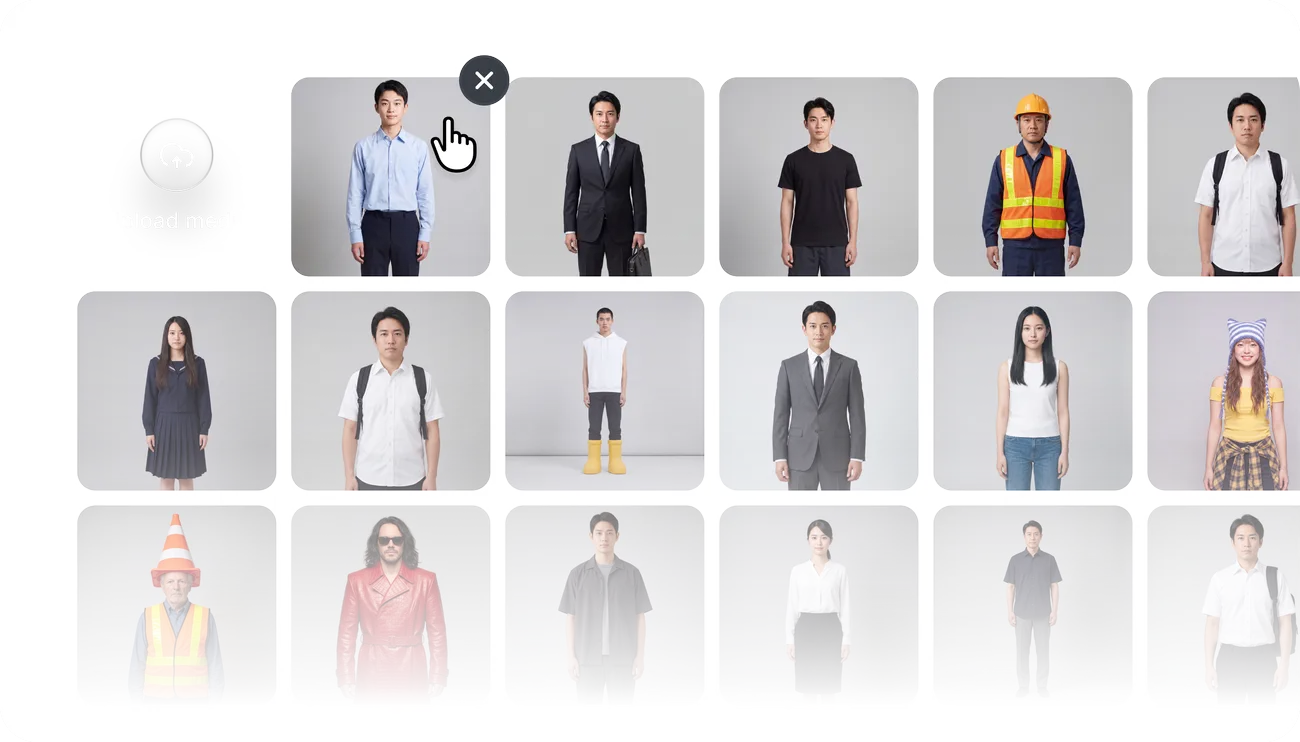
One feature worth investigating if you’re producing more than a single clip is its reference library. The Cinema Studio product page describes using uploaded media, reusable Elements and previous takes as references. AI Cast helps creators establish reusable character assets, while project briefs allow teammates to share the creative constraints for a production.
Higgsfield also has a distinct Marketing Studio workflow for UGC-style ads. That’s worth separating from the filmmaking tools.
A creator directing a product reveal might need precise camera movement, whereas a performance marketer generating multiple ad variations may want a repeatable format with a presenter and a product reference. If you’re using an AI-generated presenter, do not present their statements as genuine customer testimonials.
Key features
- Cinema Studio: Set the intended genre, camera behavior, tempo and visual treatment for a scene.
- Camera controls: Choose or sequence supported movements, such as a pan or zoom, without relying solely on free-form prompting.
- Elements and AI Cast: Create reusable subject, location and prop references for related shots.
- Multi-model generation: Select supported video engines for different production requirements.
- Project briefs: Establish shared creative constraints and references for a collaborative production.
- Marketing Studio: Develop UGC-style advertisements and supporting creative variations.
- Color grading: Adjust the visual treatment of generated material in the cinematic workflow.
- MCP and API: Access compatible generation features from other applications and assistants.
Higgsfield pros
- The interface translates filmmaking concepts into explicit controls rather than requiring every instruction to be written from scratch.
- Reusable reference assets and shared project briefs are useful for teams working on related scenes.
- Higher plans offer more concurrent video jobs, which can reduce bottlenecks when producing several takes.
Higgsfield cons
- The free account does not include a recurring credit allowance or a commercial license.
- Starter excludes several model and workflow options; the more extensive production tools may require Plus.
- Generation at 1080p can cost considerably more than a 720p draft.
- Unlimited generation offers have model and time restrictions. Check whether the precise Cinema Studio workflow you intend to use qualifies rather than assuming every generation is included.
Higgsfield pricing
Higgsfield’s published subscription guide currently lists the following rates:
| Plan | Monthly price | Monthly credits |
|---|---|---|
| Free | $0 | Not included |
| Starter | $19 | 270 |
| Plus | $59 | 1,200 |
| Ultra | From $129 | 3,000, 6,000 or 9,000 |
| Team | $79/seat | 1,000/seat |
| Scale | $215/seat | 2,500/seat |
Its separate Cinema Studio 4.0 guide gives model-specific examples. A ten-second 720p clip with native audio costs 70 credits, compared with 160 credits for the equivalent 1080p setting. Using the current Plus subscription’s 1,200-credit balance, that is up to 17 ten-second 720p clips, or seven at 1080p, if you spend the allowance exclusively on that workflow. Keep some of the balance available for revisions.
Our verdict: Higgsfield makes sense if its creative direction controls save you time when building a commercial or a sequence of related shots. If your work consists of occasional animations of still images, compare simpler platforms before paying for a plan that includes the more elaborate studio tools.
7. Adobe Firefly
Best for: Marketing and design teams that already create and finish video assets in Adobe applications.
Adobe Firefly combines generative models with the broader Adobe creative software ecosystem. For a team that works in Premiere Pro, Photoshop or Illustrator, the buying decision is often about how generated material fits into existing production, rather than whether Firefly can replace the entire tool stack.
Firefly’s Generate Video workflow lets you produce clips from text and compatible reference images. It also offers image generation, video and audio editing, speech and sound effects. If you need supporting footage for a product launch, you can develop reference frames, create a short motion asset and combine it with your existing footage and typography.
Adobe’s current Firefly plan comparison includes a multitrack video editor and Firefly Boards for creative planning. Higher plans also include access to Firefly Graph, a beta workflow-building tool. This broader set of capabilities is useful for teams coordinating multiple assets for a campaign.
Commercial usage conditions deserve attention, particularly for larger companies. Adobe offers its own models alongside third-party models.
The applicable terms and enterprise-specific intellectual property protections can vary. If your legal or procurement team has a policy on model selection, establish which Firefly models are allowed before inviting the team to use the workspace.
Key features
- Generate Video: Create footage from prompts or compatible image references, with model-dependent output controls.
- Firefly and partner models: Choose available Adobe or third-party engines within the workspace.
- Video editor: Arrange video and audio tracks in a multitrack editing interface.
- Firefly Boards: Collect ideas and develop the visual direction of creative projects.
- Sound effects and music: Produce supporting audio for generated or existing footage.
- Audio and video translation: Translate compatible spoken content using premium generative features.
- Creative Cloud integration: Use generative features within supported Adobe applications with the corresponding credit entitlements.
Adobe Firefly pros
- Generated assets can complement established Adobe workflows rather than requiring a complete change of production software.
- There is limited daily free access for experimentation.
- Paid plans combine video and audio credits with unlimited eligible standard image and vector generation.
- Premium includes unlimited access to Adobe’s own Firefly Video model in the supported Generate Video workflow.
Adobe Firefly cons
- Premium video and partner-model use can consume credits separately from standard image generation.
- Some advertised unlimited partner-model entitlements apply only to the first year.
- Unused monthly credits do not roll over.
- Adobe’s own models and third-party models can have different usage conditions.
Adobe Firefly pricing
| Plan | Regular monthly price | Monthly credits |
|---|---|---|
| Free | $0 | Limited daily generations |
| Standard | $9.99 | 2,000 |
| Pro | $19.99 | 4,000 |
| Pro Plus | $49.99 | 10,000 |
| Premium | $199.99 | 50,000 plus eligible unlimited Firefly Video generation |
These are the regular rates on Adobe’s US plan page, excluding temporary discounts. The vendor lists up to 20 five-second videos on Standard, 40 on Pro and 100 on Pro Plus in its individual plan examples. Different models and generation settings can produce different results from those estimates.
If you already pay for Creative Cloud, check your current generative-credit allocation before buying a separate Firefly plan. You may already have enough access for occasional footage generation.
Our verdict: Firefly belongs near the top of an Adobe-based team’s shortlist, especially if AI-generated footage will be combined with conventional design and editing. For a buyer who does not use Adobe applications, compare the model-specific costs and editing controls with other multi-model platforms.
8. Pika
Best for: Social media creators and independent filmmakers who want to develop short scenes and character-led videos without an expensive starting subscription.
Pika started as a straightforward prompt-to-video tool, but its newer creation platform offers a more organized filmmaking process. The Short Film app can build a script and storyboard from a premise, while Video Studio allows you to generate individual scenes and assemble them yourself.
If you’re creating a series around a recurring character, you can prepare the character in Character Studio and reuse the resulting reference sheet in later scenes. This is more practical than describing the character’s appearance from memory in every prompt.
Pika’s script-to-film tutorial explains how to break a script into shots, build the cast, generate scenes and arrange the clips. It also acknowledges that character appearance can still drift, even when the same reference is used.
Pika introduced H3 Flex on October 29, 2026. The model supports a mixture of reference material, including character sheets, sketches, product photographs, motion references and voice samples.
It can produce clips of up to 15 seconds with synchronized audio according to the release announcement and the subsequent filmmaking documentation. Other models available in Pika’s Video Studio support different durations and visual controls.
One aspect of Pika’s current pricing that is particularly interesting for new creators is its model access. Its November subscription guidance lists all models across the paid tiers. You can experiment with an inexpensive generation for a rough shot and use a premium model for the more important scenes without upgrading merely to unlock an engine.
Key features
- Short Film: Turn a creative premise into a script, storyboard and generated film draft.
- Character Studio: Prepare reference material for a recurring cast and reuse it in different scenes.
- Video Studio: Choose models, generate individual scenes and arrange the resulting footage.
- H3 Flex: Produce audiovisual clips using compatible visual, motion and voice references.
- Third-party models: Access supported Seedance, Kling and other model families in the same creative workspace.
- Pika Soundtrack: Add or generate audio for the assembled footage.
- Credit quotes: See what a generation will cost before starting it.
Pika pros
- The entry subscription includes a commercial license under the current plan terms.
- The Short Film and Character Studio workflows provide a starting point for creators who haven’t developed a shot-by-shot process.
- Current plans do not add a watermark to exported videos.
- The vendor publishes examples of low-cost draft models, which can help when establishing a revision budget.
Pika cons
- The current free account does not include monthly credits or a commercial license.
- Premium video generations can exhaust the Starter allowance much faster than the cheaper draft settings.
- Monthly subscription credits do not roll over.
- Generated scripts, character consistency and assembled scenes still need human review before publication.
Pika pricing
Pika’s November 20 pricing guide lists these monthly subscriptions:
| Plan | Monthly price | Monthly credits |
|---|---|---|
| Free | $0 | None; purchase credit packs |
| Starter | $10 | 600 |
| Creator | $35 | 2,600 |
| Fancy | From $95 | 8,550 at the $95 tier |
According to Pika’s November 23 pricing examples, a five-second H3 Flex draft costs ten credits. In contrast, a five-second Seedance 2.5 generation at 720p is listed at 122 credits on the pricing page.
The same 600-credit Starter allowance would therefore cover 60 H3 Flex drafts, but only four of those Seedance 2.5 generations, with 112 credits remaining. Check the rate shown in the generator before choosing a model.
Purchased credit packs have a separate 365-day expiry.
Our verdict: Pika is an attractive starting point if you want to experiment with short films or recurring social content. The low entry price doesn’t make every production workflow inexpensive, though. Plan your model usage around the number of shots you need to finish.
How much does it actually cost to make a video with AI?
Suppose you’re making a 30-second advertisement with six five-second shots. If you generate three versions of each shot, you’ll pay for 18 generations, even though the finished advertisement contains only 30 seconds of footage. That excludes any separately generated images, audio, editing or alternate aspect ratios.
Here is how the generation budget would work on several of the platforms we’ve covered. These are illustrative credit calculations using specific model settings, not a claim that the resulting clips have equal quality.
| Model and setting | Credits per attempt | 18 attempts | Plan implications |
|---|---|---|---|
| Runway Gen-4.5, 5s | 60 | 1,080 | Exceeds Standard’s 625 monthly credits |
| Google Flow Omni Flash 1.2, 5s, 720p | 15 | 270 | Fits the Pro monthly allowance; free daily credits can also cover the work over time |
| Oakgen, entry-price example, 5s, 480p | 85 | 1,530 | Fits Basic’s 2,000 credits at this specific rate |
| Luma Ray3.2, 5s, 720p SDR, base with keyframes | 100 | 1,800 | Fits Plus’s 10,000 credits before additional charges |
| Pika H3 Flex, 5s draft | 10 | 180 | Fits Starter’s 600 credits for these drafts |
| Pika Seedance 2.5, 5s, 720p | 122 | 2,196 | Exceeds Starter; fits Creator’s 2,600 credits |
The obvious temptation is to pick whichever row fits the smallest subscription. But if the least expensive model cannot preserve your product or carry out the required movement, the credit cost is only part of the expense. Someone still has to inspect the takes, correct the mistakes and finish the video.
Try a representative brief on your shortlisted platforms. Record what you spent to obtain each accepted shot, whether you had to repair it manually, and the time it took to complete the sequence. If you’re producing campaign assets for a client, include that editing labor when quoting the job.
Which AI video generator should you choose?
If you’re already subscribed to Google AI, start with Flow. Its daily credits and access to Google’s models make it possible to investigate an actual video brief before adding another subscription to your expenses.
Runway is a better fit when you expect to modify existing footage frequently and want editing controls that extend into Premiere Pro or DaVinci Resolve. For longer continuous scenes, compare Kling’s model controls.
If the footage needs professional color treatment or compositing, evaluate Luma’s export options. Higgsfield deserves a closer look when directing the camera and developing a recurring cast are central to your workflow.
Oakgen is useful when your work already spans image, video and audio generation, especially if several model subscriptions have become difficult to justify. If you haven’t chosen an image tool for preparing your reference frames, our guide to the best AI image generators covers the options.
For occasional social media content, Pika offers an inexpensive entry subscription and a more structured way to develop short scenes. And if your team already works in Adobe applications, see what you can accomplish with your existing Firefly entitlements before paying for another platform.
Frequently asked questions about AI video generators
What is the best free AI video generator?
Google Flow is a useful starting point because eligible users receive 50 daily credits without a paid subscription. Adobe Firefly offers limited daily generations, and Runway has a one-time trial allowance. Check commercial usage terms and output restrictions before using free generations in client work.
Which AI video generator is best for filmmakers?
Runway, Luma, Kling and Higgsfield serve different filmmaking needs. Runway is suitable for generating and editing shots, Luma supports production-oriented output formats, Kling offers longer takes and multiple keyframe inputs, and Higgsfield provides cinematic direction controls. Test the model using a shot from your actual script.
Can an AI video generator make a full-length video?
Some platforms can assemble multiple generated scenes into a longer sequence, but individual model generations have duration limits. Kling 4.0 supports native clips up to 30 seconds; Runway Gen-4.5 supports up to ten. For longer productions, prepare the cast and reference assets, break the script into shots, generate footage and assemble the approved takes.
Which AI video generators include sound?
Several models available through Pika, Kling, Higgsfield and multi-model workspaces support synchronized audio. Pika H3 Flex is one example.
Ray3.2 does not generate native audio with new text-to-video and image-to-video clips, although its editing modes can preserve existing audio. Check the specific model rather than assuming that every model within a platform supports sound.
Can I use AI-generated videos commercially?
Commercial use depends on your subscription and the applicable model terms. Check whether you have the necessary rights to source photographs, voices, music, recognizable people and branded products. A vendor’s commercial-use license does not automatically give you permission to use protected material supplied in a prompt or depicted in a generation.
Should I use a dedicated video model or an all-in-one creative platform?
If you rely on a particular model’s native editing or reference controls, the direct platform may be the better choice. If you regularly switch between models or need reference images and voiceovers, an all-in-one platform can simplify production. Compare the settings available for your chosen model and calculate the cost of finishing an actual brief on both options.
Software Evaluated in This Publication
Compare full specifications, pricing tiers, and alternatives in our independent software directory.

Adobe Firefly
Adobe’s generative AI suite for images, design, video, and creative workflows....
Luma Dream Machine
Luma’s generative video environment for creating and modifying moving imagery....
Make
Visual no-code automation platform for connecting apps and designing complex data branching workflows....

Oakgen
Multi-model AI creative workspace for images, video, voice, music, and avatar content using a shared credit balance....